Serifpresso Studio — English Summary
Please read first. This English page was written with the help of AI, based on the Japanese guide. It is a condensed summary, so some details may be worded differently from the original, or may be missing. If anything conflicts, the Japanese guide is the correct one. If something here does not match what you see in Unity, please contact us — we will check it.
The product UI is Japanese only. Unity menu items, buttons and error messages are in Japanese. This page shows them in Japanese, exactly as they appear in Unity, with the English meaning next to them. Please look for the Japanese string, not the translation — the translated text does not exist anywhere in Unity.
What this is
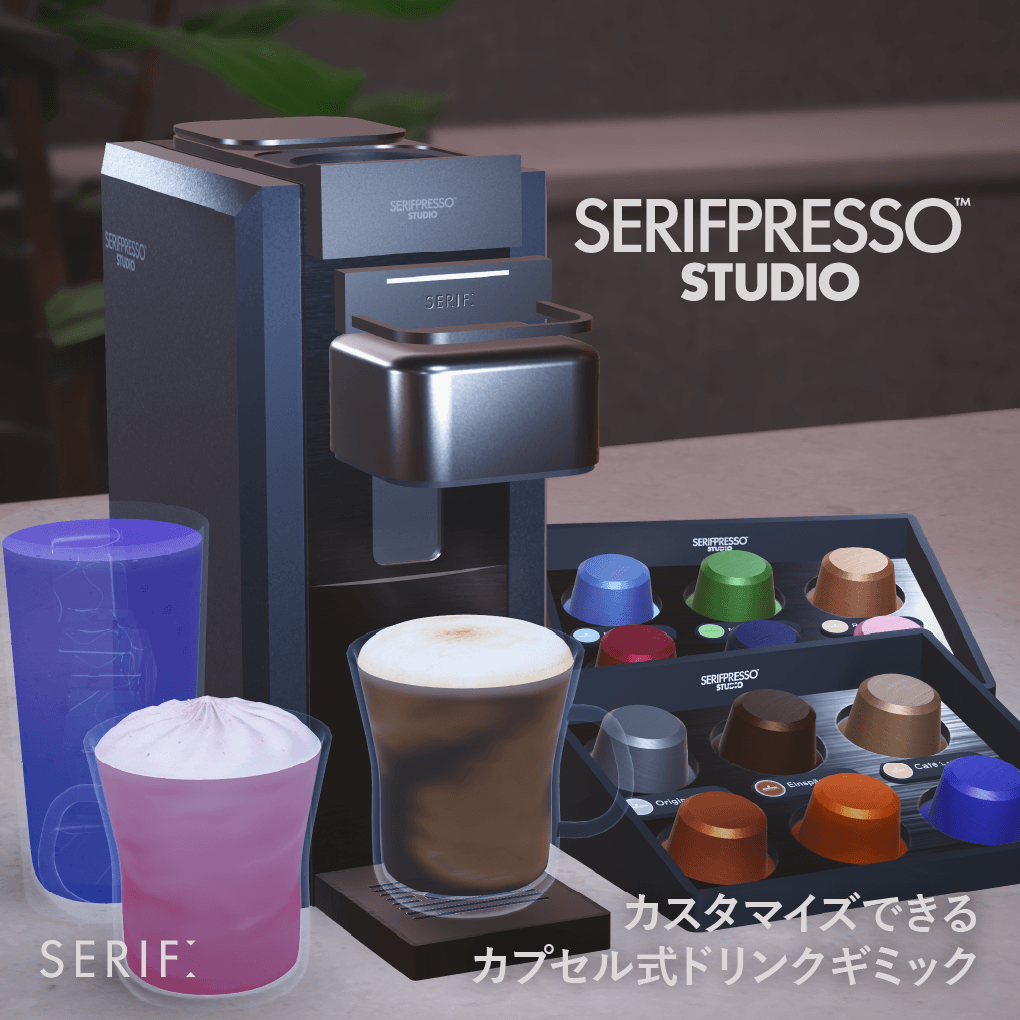
Serifpresso Studio is a capsule drink machine you place in your VRChat world. Insert a capsule, interact with the lever, and one drink is brewed in about 8 seconds. Players can carry the cup around and drink from it. Besides the included drinks, you can create your own.
Place it as-is and confirm you can brew one cup before you start customizing. Back up your Scene before customizing or light baking.
Three things people trip on
- Press "Apply to Scene" after placing anything. Whenever you place or move a machine or cup, or edit a drink, press the wizard's シーンに適用 button once. (See Step 4.)
- Do not mark the machine as Static. Turning Static on for the whole world will make the capsules and drinks render pure black after baking. (See Step 6.)
- Do not press "Upgrade" on VRCPickup. It changes how the cups and capsules are held, and the upload check will stop you.
Standard and Full
There are two editions. The features and the gimmick itself are exactly the same; only the included content differs (number of preset drinks, furniture, cup variations). Everything on this page applies to both.
| Standard STD | Full FULL | |
|---|---|---|
| Preset drinks | 6 Original Blend / Café Latte / Cappuccino / Einspänner / Orange Tea / Butterfly Pea |
12 the 6 on the left + Matcha Latte / Strawberry Milk / Royal Milk Tea / Spiced Berry / Mallow Blue / Starry Night |
| Machine body | Base (1 color) | Base + SE Black / SE White special finishes |
| Furniture | — | Chiller (refrigerated showcase) ×3 + tray |
| Cups | Hot mug / iced tumbler | Same + ceramic cups in 3 colors (White / Navy / Greige) |
| Custom drinks | No limit in either edition (same wizard, same web customizer) | |
In Full, the extra 6 drinks are added with a single import. See Get all 12 drinks.
There is no paid upgrade path from Standard to Full. Note that the number of drinks is not locked to the edition — you can freely add your own drinks in Standard as well.
Requirements
- Unity 2022.3.22f1 (the version VRChat currently specifies)
- VRChat Worlds SDK (UdonSharp is included in the SDK). Verified with Worlds SDK 3.10.4
- PC (Windows) only
No prerequisite assets. This product runs with the VRChat Worlds SDK alone — every model, texture, shader, sound and script is ours.
Quest / Android is not supported. In a cross-platform world the prefabs are not excluded automatically; you would have to exclude them yourself for non-Windows builds (that configuration is outside our support).
You can add this to an existing world project. A dedicated project is not required.
Setup in 7 steps
This chapter takes you from importing the package to having a working machine in your uploaded world.
This guide assumes you have already uploaded a world or avatar with the VRChat Creator Companion (VCC). Uploading a world also requires the New User trust rank or above.
Step by step
Prepare a world project
This product is an object you place in a world, not a world itself, so you need a world project to put it in.
- Already building a world — use that project. Back up the project or the Scene first.
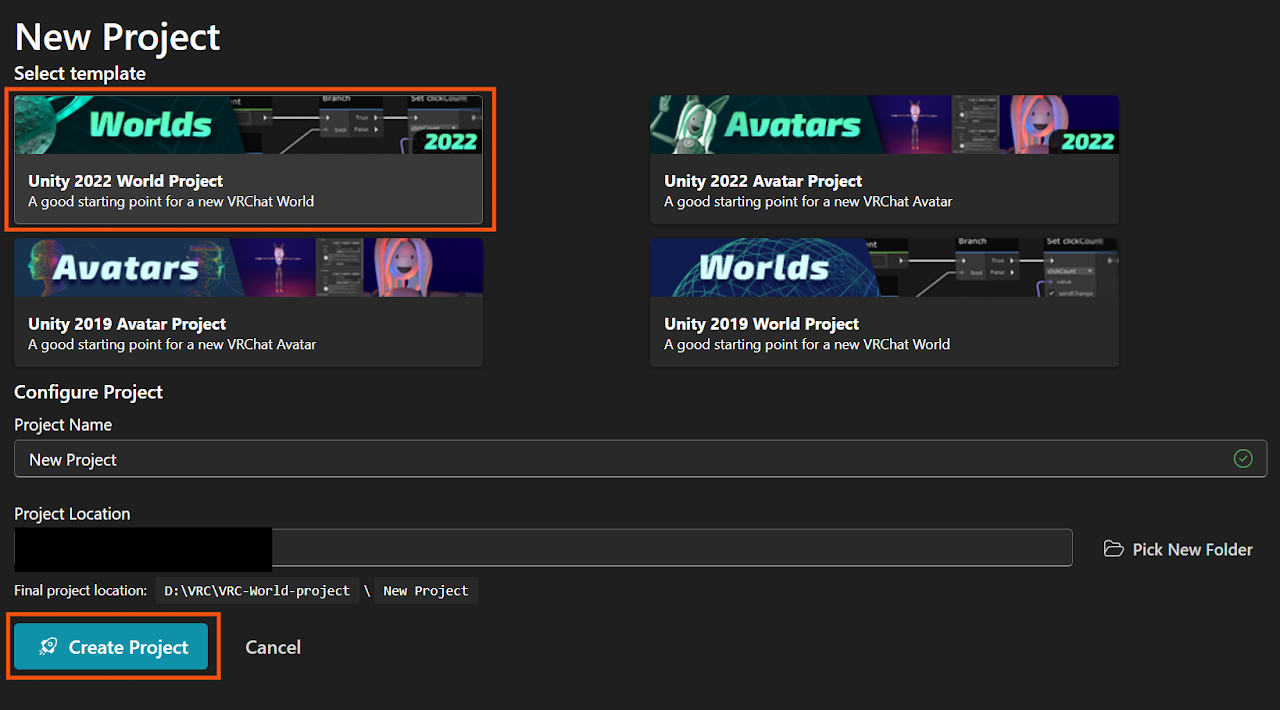
- Just want to try it — in VCC, Create New Project → 2022 World Project. You can open the included demo scene as-is.
In Manage Project, make sure VRChat SDK - Worlds / Base are up to date.
Import the package
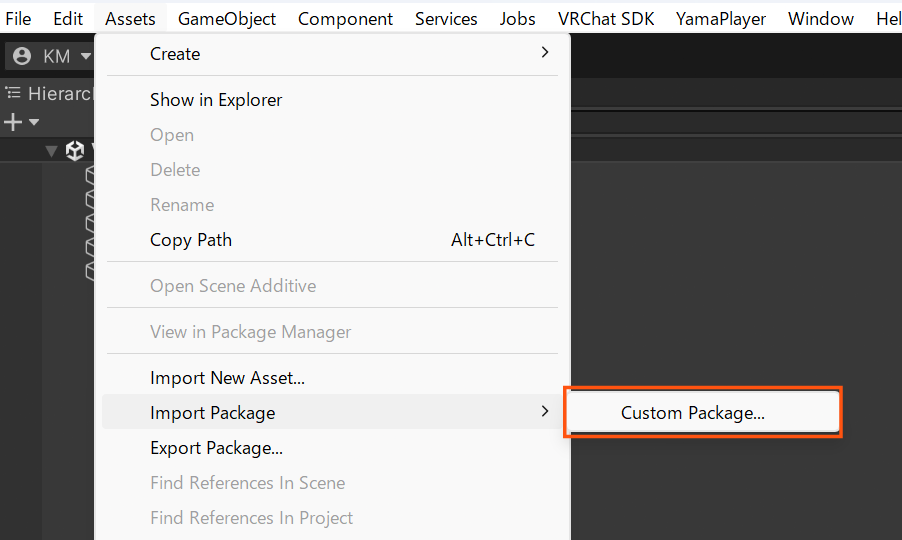
Open the project in Unity and import the .unitypackage you purchased from Assets > Import Package > Custom Package.... Leave every item checked and press Import.
- Standard — SerifpressoStudio_Standard_v1.0.unitypackage
- Full — SerifpressoStudio_Full_v1.0.unitypackage
UdonSharp programs are generated automatically after the import. Please wait until it finishes.
Red errors right after importing? They are often temporary, printed while UdonSharp is still compiling. Wait for compilation to finish, clear the Console, and check whether they come back. If they persist, restart Unity or import the package again.
Place the machine in your Scene
Open the Scene you want it in, and drag Serifpresso Studio from Assets/Serif/Serifpresso_Studio/Prefabs/ into the Hierarchy or the Scene view.
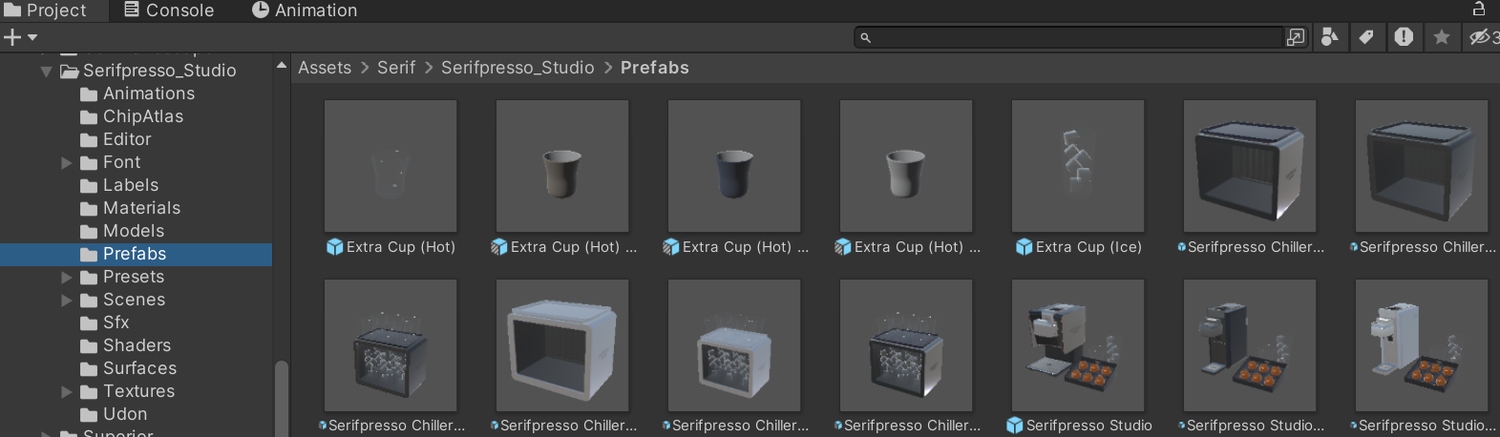
The prefab contains not only the machine body but also the capsule holder (rack), cups and tray.
If you place two or more machines, keep them well apart. Each machine has detection zones that decide whether a cup or capsule is "at this machine". If those zones overlap, two machines fight over the same cup and the gimmick breaks — so the upload check refuses to build in that state. Keep the whole prefab (rack and cup tray included) from overlapping.
Press "Apply to Scene" — the one operation that matters
Open Serif > Serifpresso Studio > ドリンク・ウィザード (Drink Wizard) from the menu bar and press the button at the bottom of the window:
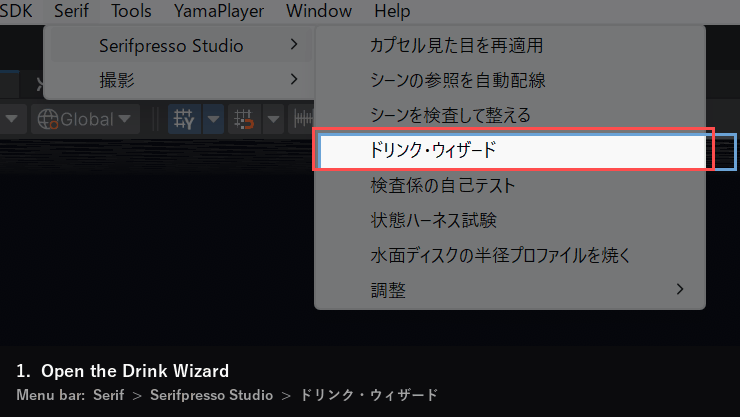
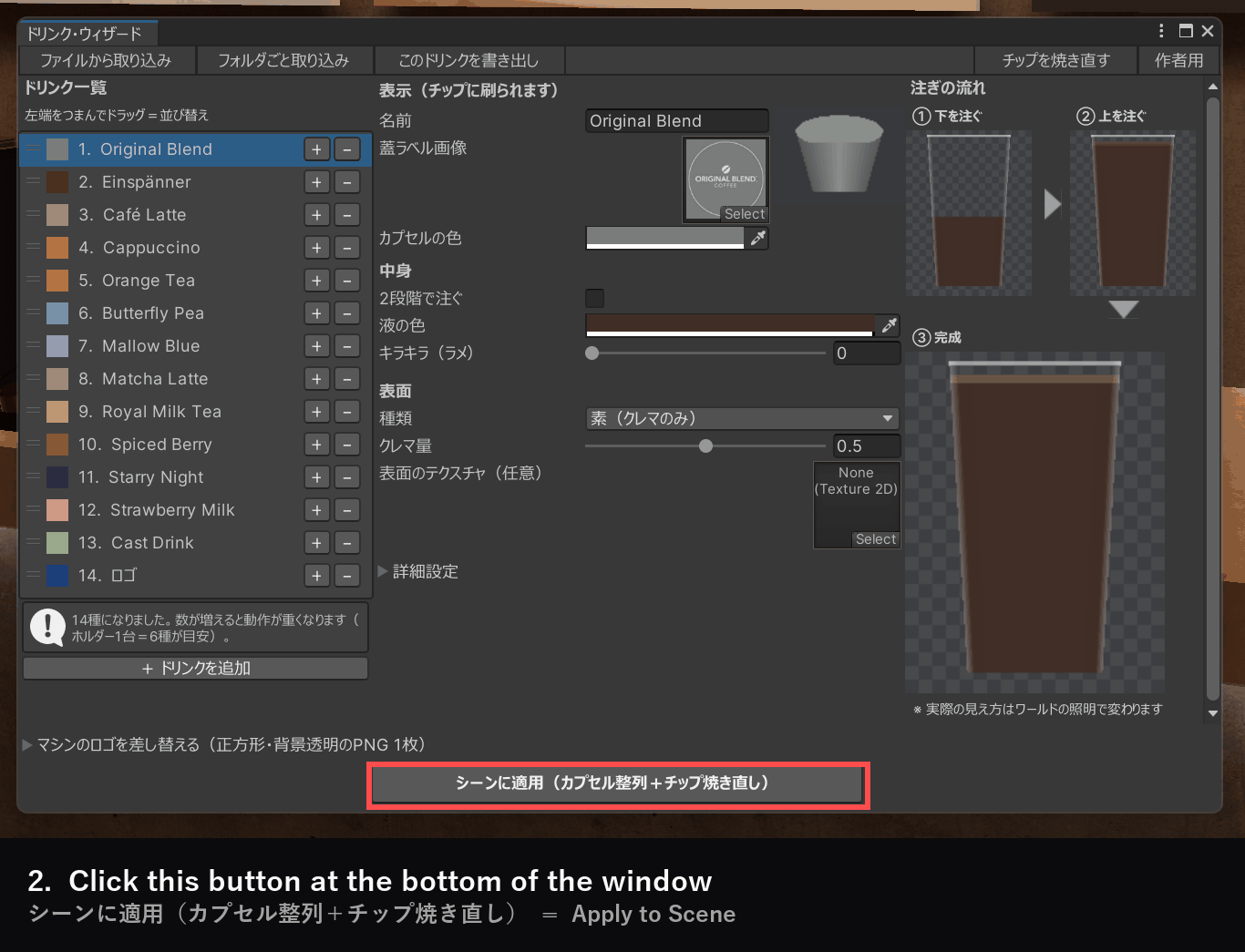
The menu and the window are in Japanese. Look for the strings highlighted in red above.
That single button does all of the following:
- Inspects and repairs the scene (assigns IDs to machines, cups and capsules, and wires up references)
- Writes the drink data into the machine
- Creates one capsule per drink and arranges them in the holder
- Re-bakes the name chips on the front of each capsule
When it finishes you get a dialog saying 適用しました ("Applied"). Setup is complete at this point.
A folder Assets/SerifpressoStudio_UserData/ is created. That is normal — files generated for your scene (chip images and so on) go there. The product folder itself is not modified.
Press it again whenever you change something. Added or moved a machine or cup, edited a drink, updated the package — press シーンに適用 once more. Forgetting it causes capsules not to appear, or the upload check to stop you. You can undo the whole apply with a single Ctrl+Z.
Brew one cup in Play mode
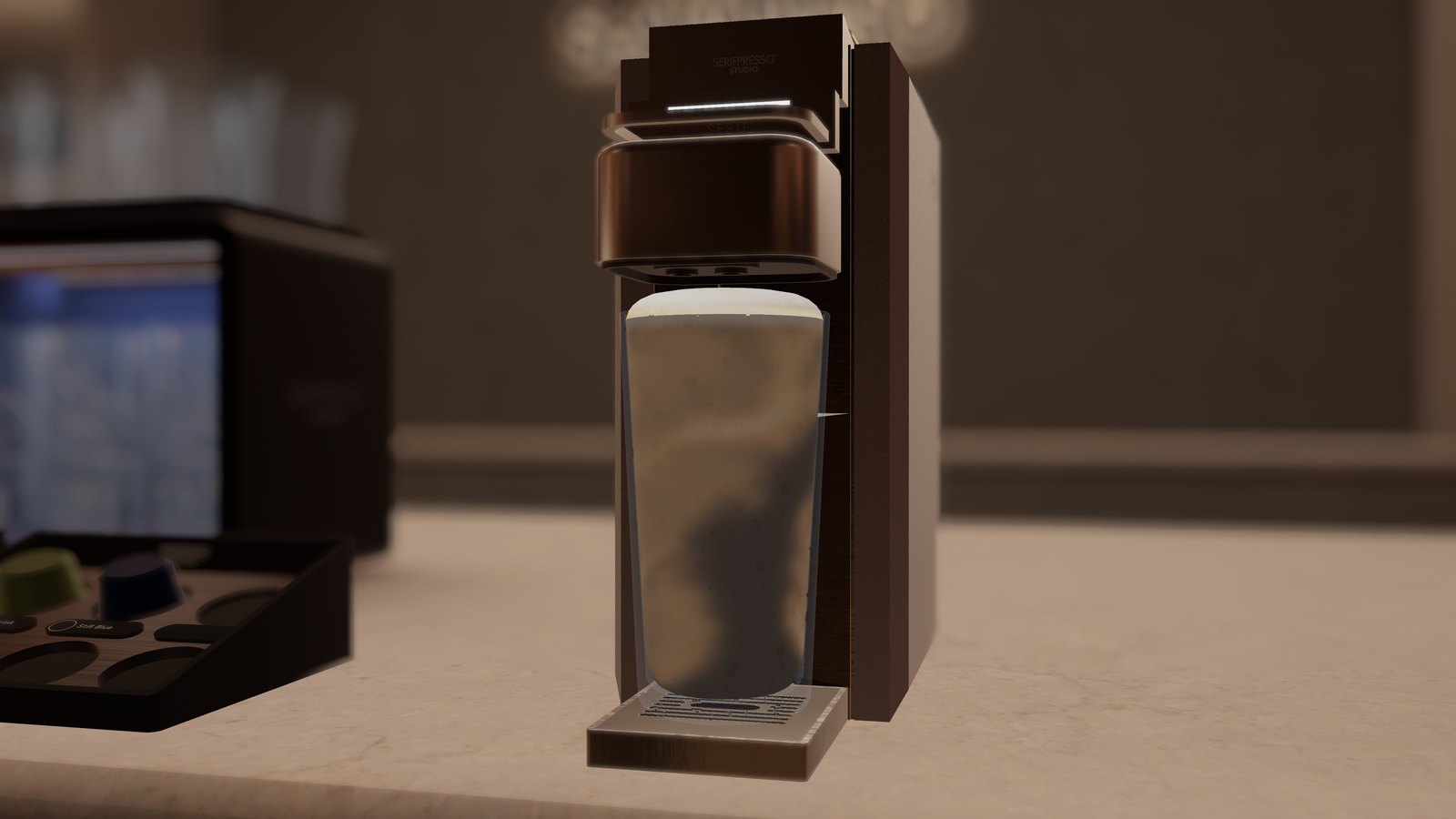
Press Play in Unity and brew a cup in ClientSim. It works the same as in the world:
- Grab a capsule from the holder
- Bring it near the machine's slot (it snaps in)
- Bring a cup near the cup socket (it snaps in)
- Interact with the lever — brewing starts and finishes in about 8 seconds
Before light baking (important)
If you bake lighting in your world, check these two things first. Skipping them causes "the drinks turned black" or "the colors look dull".
1. Do not mark the machine as Static
World creators often select the root object and turn Static on for everything. If you do that here, the capsules, liquid, glass and ice turn black after baking.
- Leave everything under the machine prefab non-Static.
- The outer body of the machine alone can be Static without problems.
- If it already turned black, turn Static off and bake again — it recovers.
2. Place light probes
In a baked world, moving things (avatars, held objects, the pouring particles) get their light from light probes. Without probes they fall back to ambient light and the drink can look dark and dull. Place a Light Probe Group near the machine and run Generate Lighting.
This is standard practice for any baked VRChat world, not something specific to this product.
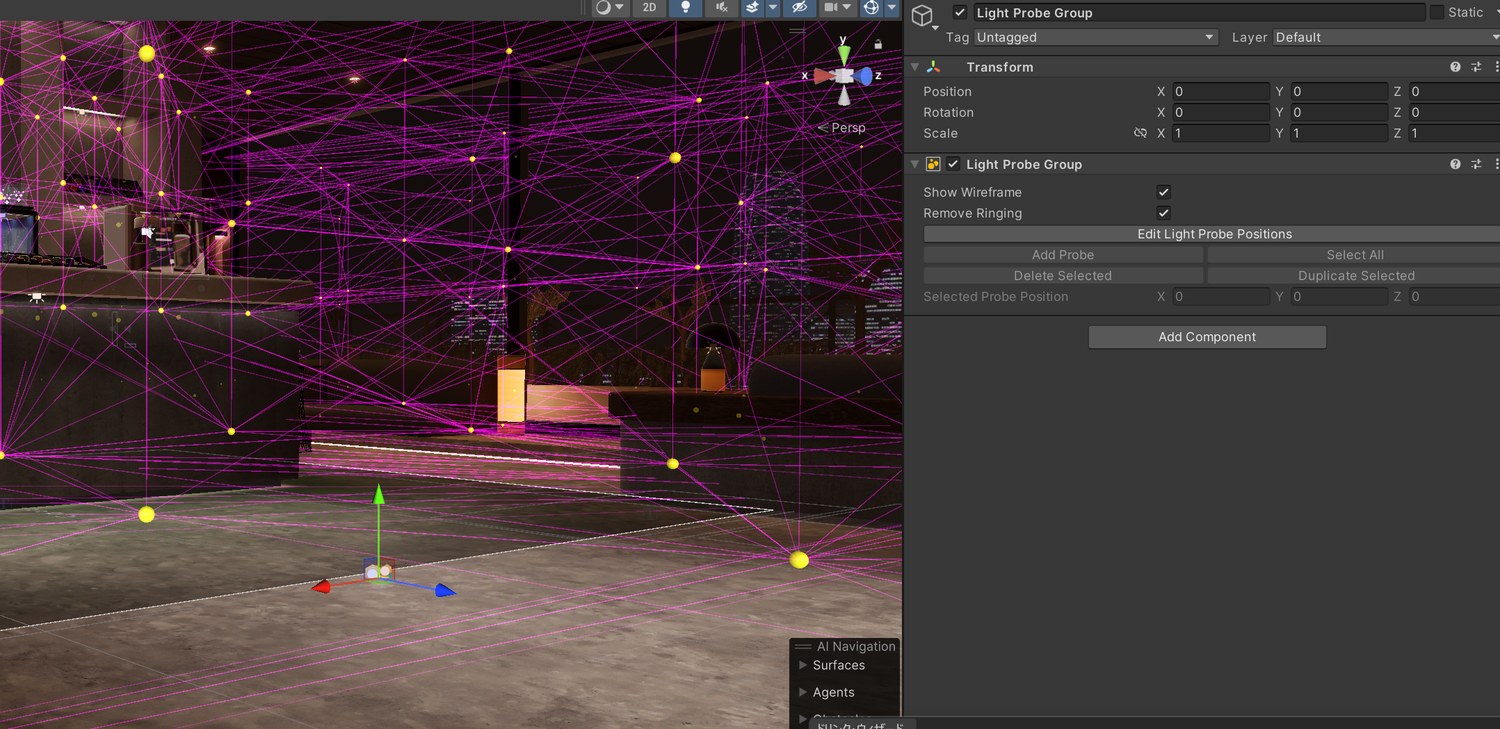
Worlds lit with realtime lights do not need probes. Also note that the chiller's built-in lights (Full edition) are Baked — the shelves are lit only after you bake your world lighting.
Upload
Log in from VRChat SDK > Show Control Panel as usual and run Build & Publish in the Builder. Make sure the build target is Windows (PC).
An automatic check runs when you upload. It stops problems you would otherwise only discover while playing: missing IDs, overlapping detection zones, changed pickup settings.
If it stops with errors, the Console shows the cause and the object name for each one. Most of them are solved by running Serif > Serifpresso Studio > シーンを検査して整える, or the wizard's シーンに適用. See Troubleshooting.
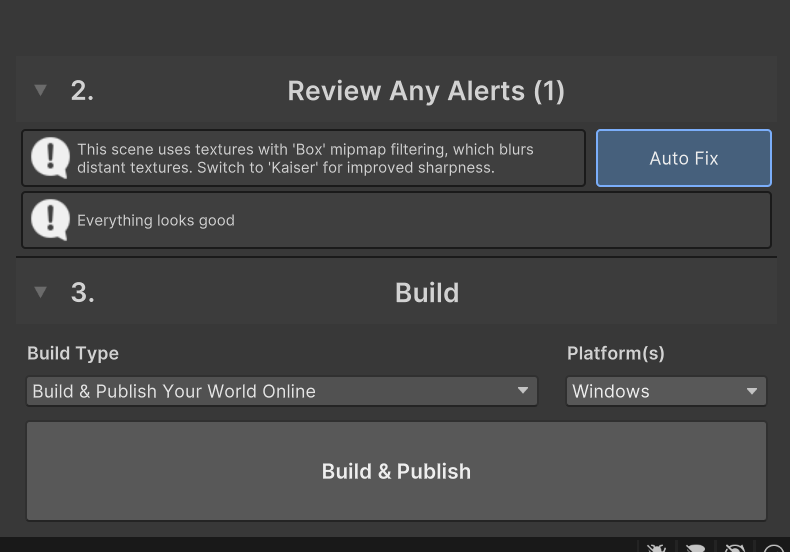
Once uploaded, go into your world and brew a cup. You are done!
Using it in the world
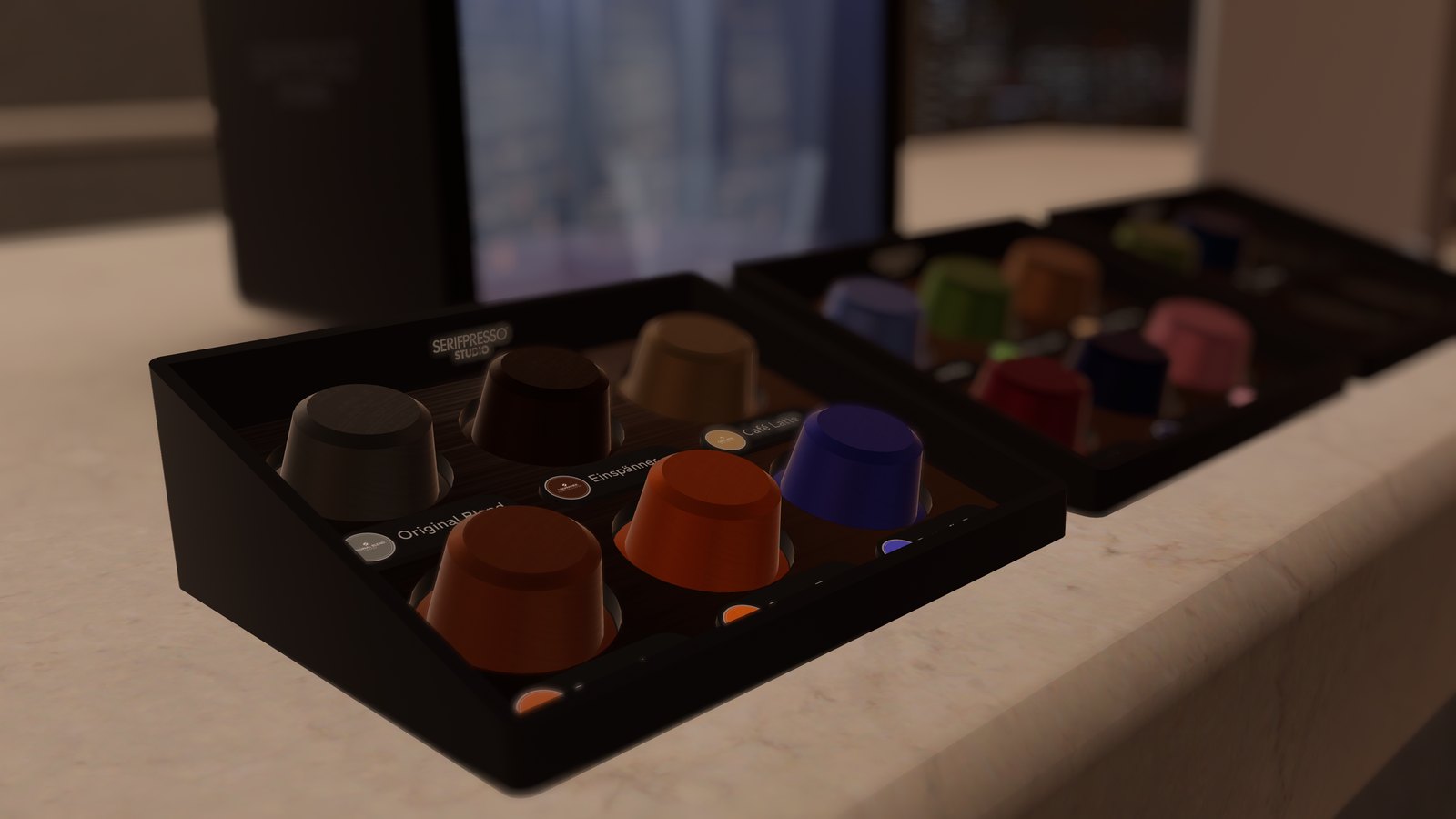
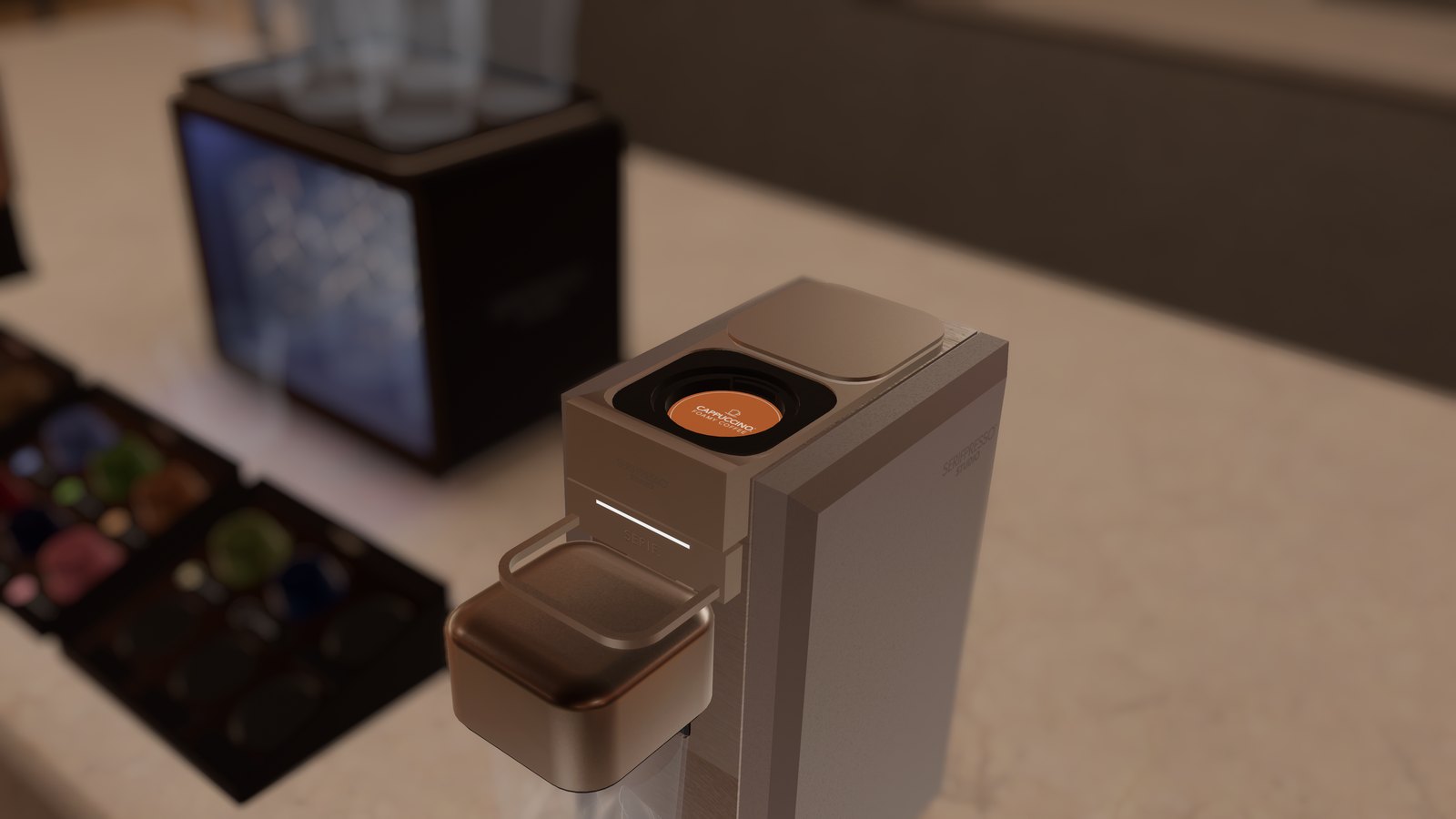
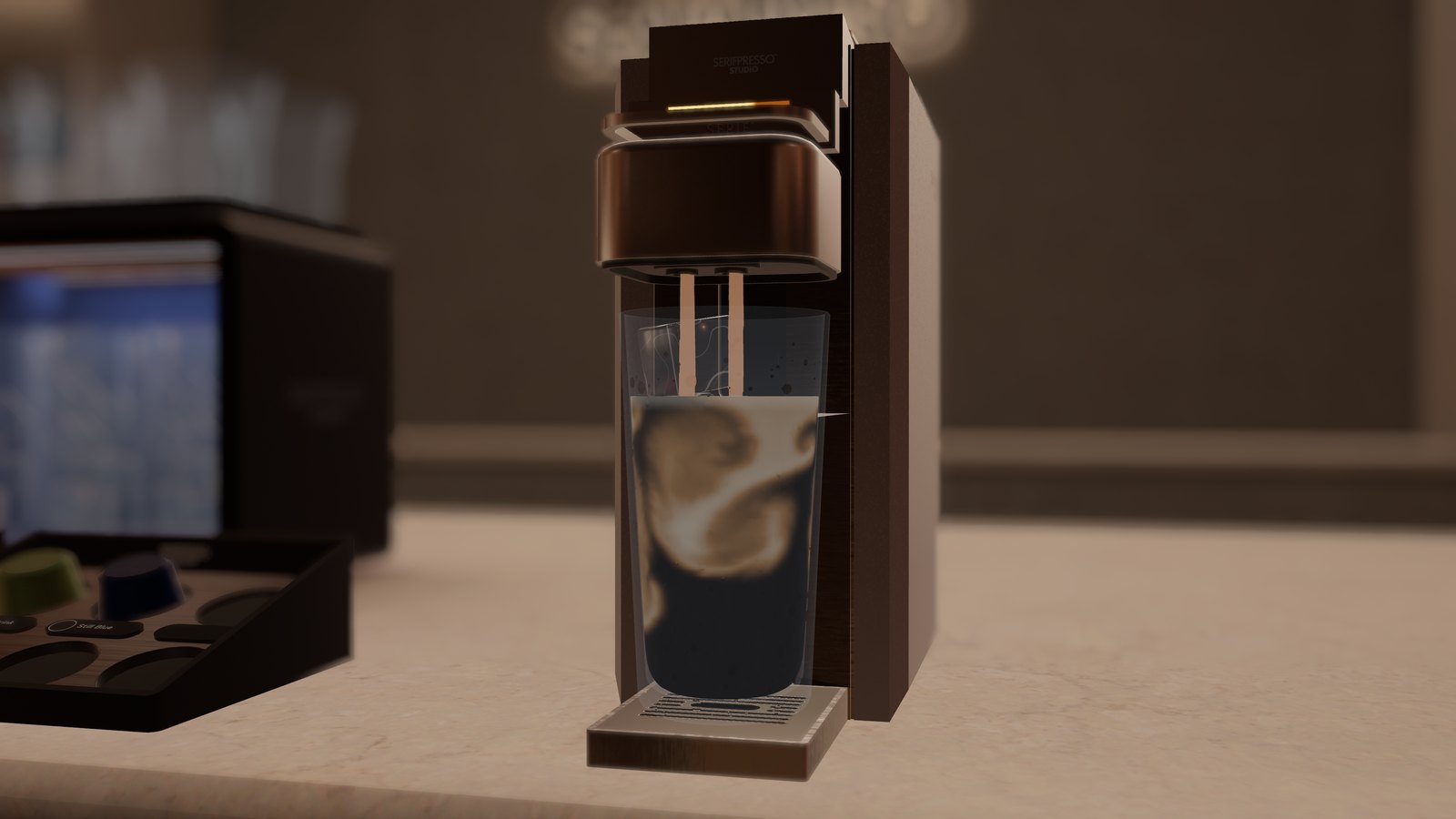
Take a capsule from the holder and bring it to the slot, put a cup on the cup socket, then interact with the lever. Both the capsule and the cup snap into place when they get close. Brewing takes about 8 seconds, and you drink by holding the cup and using it (Use).
- Used capsules clean themselves up. When brewing ends, the capsule returns to its own seat in the holder.
- If the lever does nothing, a red lamp blinks for you only. It means the conditions are not met yet: check that both a capsule and a cup are set, and that nobody else is already brewing.
- Reset button — returns the machine to idle, releases the locked cup and capsule, sends the inserted capsule back to its seat and empties the cup. Use it to recover if something got stuck. Anyone can press it by default.
- Hot or iced is decided by the cup, not by the drink. The same drink poured into a mug is hot; poured into the tumbler with ice it is iced. To add more cups, place an Extra Cup prefab and press シーンに適用.
Get all 12 drinks FULL
The shipped scene starts with the basic 6 drinks. In the Full edition, the other 6 come as preset files that you import once. You don't need any other package.
| Folder | Contents |
|---|---|
| Presets/Standard | The basic 6: Original Blend / Café Latte / Cappuccino / Einspänner / Orange Tea / Butterfly Pea |
| Presets/Extras FULL | The extra 6: Matcha Latte / Strawberry Milk / Royal Milk Tea / Spiced Berry / Mallow Blue / Starry Night |
Both folders are in Assets/Serif/Serifpresso_Studio/Presets/, one .serifdrink.json file per drink.
Looking for the textures of the extra drinks? Their lid labels and surface art are embedded inside the .serifdrink.json files, not stored as separate images. That is why they are not in the Labels folder. They are extracted automatically when you import, into Assets/SerifpressoStudio_UserData/ImportedDrinks/.
Steps
- Open Serif > Serifpresso Studio > ドリンク・ウィザード (Drink Wizard).
- In the toolbar at the top of the window, click フォルダごと取り込み (Import folder) and select Assets/Serif/Serifpresso_Studio/Presets/Extras.
- The dialog 取り込み完了 (Import complete) shows how many drinks were added. Click OK.
- Click シーンに適用 (Apply to Scene) at the bottom of the window.
- When the dialog ホルダーが足りません (Not enough holders) appears, choose 増設する (Add holders).
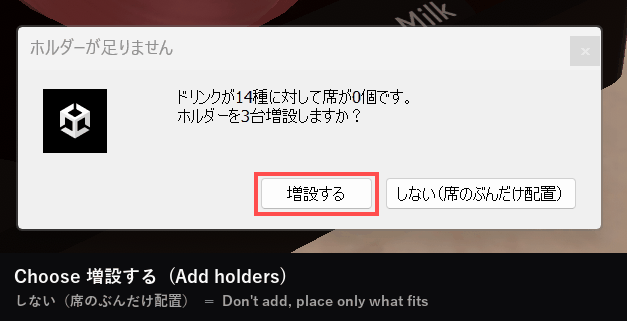
A second capsule holder is created automatically and the 6 extra capsules are placed in it. If you choose しない(席のぶんだけ配置) (Don't add, place only what fits), no holder is added and only as many capsules as there are free seats are placed.
About 6 drinks per holder is the guideline. Every capsule and cup is a synced object, so adding many drinks makes the world heavier. In busy worlds, fewer kinds is more comfortable.
Importing never deletes anything
Importing only adds drinks. It never overwrites or removes the ones you already have. If a drink with the same name exists, the imported one is renamed, for example Matcha Latte (2).
- Restore a preset you deleted: use ファイルから取り込み (Import file), pick that drink's .serifdrink.json from Presets/Standard or Presets/Extras, then press Apply to Scene.
- Remove a drink: click the − button next to it in the list, confirm with 削除 (Delete), then press Apply to Scene. Leftover capsules are cleaned up automatically.
The Serif menu
The package adds Serif > Serifpresso Studio to the Unity menu bar. In normal use you only ever need the Drink Wizard. Every item here is safe to run — none of them break your scene.
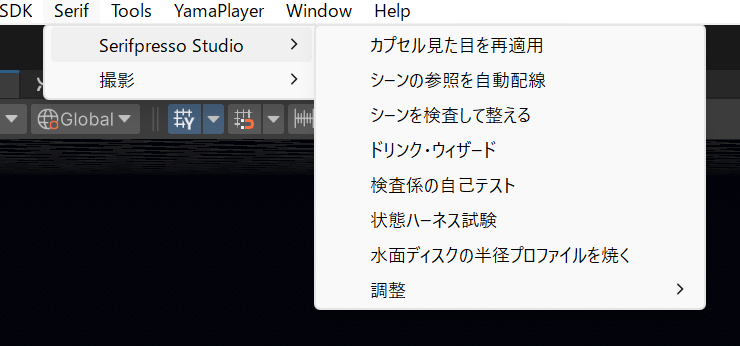
| Menu item (as shown in Unity) | What it means | When to use it |
|---|---|---|
| ドリンク・ウィザード | Drink Wizard | The main window. Add, edit, reorder and delete drinks, export/import files, swap the machine logo, and press シーンに適用 (Apply to Scene). |
| シーンを検査して整える | Inspect and fix the scene | Assigns IDs, unifies the drink library into one, wires up references, and checks for overlapping machines. Same effect as Apply to Scene. Runs automatically at upload time (check only, no fixing). |
| カプセル見た目を再適用 | Reapply capsule appearance | Editor-only preview so capsules show their drink color and lid label. Runs automatically; press it if capsules stay white in the editor. |
| シーンの参照を自動配線 | Auto-wire scene references | Links newly placed cups to the drink library in the scene. Runs automatically; press it if an extra cup shows the wrong contents. |
| 検査係の自己テスト | Validator self-test | Diagnostics. Verifies the validator itself over 10 conditions and prints the result to the Console. Does not touch your scene. Please attach the result when reporting a problem. |
| 状態ハーネス試験 | State harness test | Diagnostics. Simulates late joiners, owner leaving, out-of-order packets. Does not touch your scene. Please attach the result when reporting a problem. |
| 調整 > マグのノズルを 2mm 下げる / 上げる / 下げ量を表示 not supported | Adjust > lower / raise the mug nozzle by 2mm / show current offset | Fine-tunes the nozzle height for hot mugs. Reversible at any time. |
| 調整 > 【試験用】抽出を約30秒にする / 出荷値(約8秒)へ戻す not supported | Adjust > [test] make brewing ~30s / restore the shipped ~8s | Temporarily slows brewing so you can watch the pour and the mixing. Remember to restore it. |
| 水面ディスクの半径プロファイルを焼く not supported | Bake the liquid surface radius profile | Only needed if you rebuilt a cup's liquid mesh yourself. Already baked in the shipped state. |
not supported means "we document it, but questions about the result are outside our support scope". See Support.
Troubleshooting
Click a question to open the answer. Console messages from this product all start with [Serifpresso].
The upload is blocked
When the upload check finds a problem, you get this dialog and the build stops:
The number of errors is not a measure of how bad things are — one unfinished setup step produces one error per machine, cup and capsule, so dozens of errors are usually a single missing operation. Read the Console lines starting with [Serifpresso] and find them below.
"...が未採番です" / "カップ表が未配線です" (not numbered yet / cup table not wired)
IDs have not been assigned to the machines, cups and capsules yet. This is what you get if the prefab was placed but never applied.
Run the wizard's シーンに適用, or Serif > Serifpresso Studio > シーンを検査して整える. That solves it in almost every case. Save the Scene afterwards and upload again.
"判定範囲が重なっています" (the detection zones overlap)
Two or more machines are placed so that their detection zones overlap. Two machines would fight over the same cup or capsule, so uploading is refused by design.
The Console names the objects involved. Move the machines apart so that the whole prefab (capsule holder and cup tray included) does not overlap, then run シーンに適用 again.
"ドリンクの辞書(RecipeLibrary)が複数あり、中身が違うため自動統一できません" (two different drink libraries)
You have machines carrying different drink lists in one scene. Which list to keep is a decision only you can make, so it is never merged automatically.
Open the wizard, compare both, make them match the one you want to keep, then press シーンに適用. The reliable way is to export one and import it into the other.
"カプセルの recipeIndex が範囲外です" (capsule recipeIndex out of range)
You reduced the number of drinks, and capsules pointing at a drink that no longer exists are still in the scene.
Press the wizard's シーンに適用 — the leftover capsules are cleaned up automatically. (In this state シーンを検査して整える alone may stop with an error; Apply to Scene resolves it.)
"Prefab 編集モードでは実行できません" / "複数のシーンに載っています" (prefab stage / multiple scenes)
For safety, the tools refuse to run in these two situations:
- Prefab edit mode (Prefab Stage) is open — close the stage and run it from the scene.
- Parts are spread over several scenes (additive) — this version is single-scene only. Open just one scene, or move everything into one, then run it.
"VRCPickup が製品方針(Version 1.0 + AutoHold=Sometimes)と違います" (pickup settings changed)
The Upgrade button on a VRCPickup component was pressed. This product deliberately keeps the older pickup behaviour (hold-to-grip in VR, click to toggle on desktop), so pressing Upgrade changes how cups and capsules are held.
Set the component back to Version 1.0 and AutoHold = Sometimes on the object named in the Console.
Visual problems
The drinks or capsules turned pure black.
Static was most likely turned on for everything before a light bake. Turn Static off on those objects and bake again. See Step 6.
The drink colors look dark or dull.
In a baked world with no light probes, moving objects (the cup contents, the pouring particles) fall back to ambient light. Place a Light Probe Group near the machine and run Generate Lighting.
Capsules stay white / the lid label does not show (in the Unity editor).
The editor preview came off. Run Serif > Serifpresso Studio > カプセル見た目を再適用. This affects the editor view only, never the uploaded world.
Other
No capsules appeared in the holder after placing the machine.
シーンに適用 has not been pressed yet. Open the wizard and press it — one capsule per drink is created and arranged in the holder.
An extra cup I placed does not show the right contents.
The cup is not linked to the machine's drink library. Run the wizard's シーンに適用, or Serif > Serifpresso Studio > シーンの参照を自動配線.
After updating the package, the editor still shows the old settings.
Right after an overwrite import, the data inside instances already placed in the scene is not refreshed in edit mode. Press シーンに適用 once and it lines up. Play mode and builds always use the new values.
I can't find the textures for the extra 6 drinks (Full).
They are embedded inside the .serifdrink.json files in Presets/Extras, so they don't exist as separate images until you import. Import that folder in the Drink Wizard and they are extracted automatically. See Get all 12 drinks.
I want to go back to the shipped state.
For the drinks: importing only adds, it never replaces. Remove the drinks you don't want with the − button, and re-import any preset you deleted from Assets/Serif/Serifpresso_Studio/Presets/Standard with ファイルから取り込み (Import file). Then press シーンに適用. See Get all 12 drinks.
For the machine itself: delete the machine in the scene together with its parent, place it again from Prefabs, and press シーンに適用.
The Japanese reference page has 30 FAQ entries in total. Browser translation (Chrome, DeepL) reads it well — but do not translate the menu names; look for them exactly as written on this page.
Support
This product is built to carry you all the way from "place it" to "make your own drinks and enjoy it". If something inside that range does not work, please get in touch.
| Supported | Not supported (your own customization) |
|---|---|
|
Importing and placing the package The Serif menu features, including Apply to Scene Creating drinks with the wizard or the web customizer Importing and restoring the bundled presets Placing the bundled prefabs as-is and uploading |
Behaviour after changing Inspector values or materials Rebuilding the inside of the prefabs, editing meshes or shaders Modifying the scripts, or combining with other assets Isolating problems that appear after such changes |
When reporting a problem, please run Serif > Serifpresso Studio > 検査係の自己テスト and 状態ハーネス試験 and attach the Console output. Neither touches your scene. Please also tell us your Unity version, SDK version, edition (Standard / Full), and what you did before the problem appeared.
Contact: please message us from the BOOTH product page. Japanese and English are both fine.
The web drink customizer is here: serif.work/presso
License
This product is provided under terms based on the VN3 License Ver.1.10 (terms version 1.0, issued 2 August 2026). The permission table is on the first page of the PDF.
English (PDF) / 日本語 / 한국어 / 中文
Additional terms
- This data is a world gimmick for PC (Windows) VRChat. Mobile platforms such as Quest are not supported.
- Images, text and drink settings you supply yourself remain yours. We claim no rights over them.
- Reusing the shaders and scripts in this data to build, distribute or sell a gimmick with the same kind of functionality is not permitted.
- To use this data in a world made on commission, both the creator and the client must own it.
- Distributing the bundled presets themselves, or data derived from them, is not permitted — the same applies to data containing the bundled images (lid labels, surface art).
Rights holder: Serif / Credit is not required (©Serif is appreciated).
Credits
No prerequisite assets. Every model, texture, shader, sound effect and program was made by Serif. Bundled: Zen Kaku Gothic New (Zen Fonts / SIL Open Font License 1.1), used to render the capsule name chips; the full license text is included at Assets/Serif/Serifpresso_Studio/Font/ZenKakuGothicNew/OFL.txt.
Product version v1.0 / This English summary was generated with AI assistance from the Japanese guide.
Full version (Japanese) Serifpresso Studio スタートガイド →