Serif Mixology Start Guide
English support is NOT officially provided. Serif Mixology is a Japanese product. We do not offer official support in English, and we cannot promise answers or fixes in English. This page is provided as is — please use it at your own risk. We are considering multilingual support for the product, but there is no schedule yet.
This page is a machine translation. It was machine-translated from the Japanese start guide, so some details may be worded differently or missing. If anything conflicts, the Japanese guide is the correct one. The Reference page (wizard, specifications, FAQ) is available in Japanese only.
The product is Japanese only. The Unity menus, the Cocktail Wizard, error messages, and the tablet's tabs, buttons and headings are in Japanese (the tablet also shows some English, such as drink and ingredient names). This page shows on-screen text in Japanese, exactly as it appears, with the English meaning next to it. Please look for the Japanese text — the English translation does not appear anywhere in the product.
[Fixed] The bug where some parts disappeared in VRChat was fixed in v1.0.1 (released October 26, 2026)
In v1.0, on some setups, if you uploaded with 「アップロード時にメッシュを結合」 (Combine meshes on upload) still turned on, some parts (such as the shaft of the syrup pump and the optic bottles) could disappear inside VRChat, even though everything looked normal in Unity's Play mode.
What to do: Download the latest v1.0.1 from BOOTH and import it (→ Update steps (Japanese)), press 「適用」 (Apply) in the Cocktail Wizard, and then upload again. If you had turned off the 「アップロード時にメッシュを結合」 (Combine meshes on upload) check box, please turn it back on.
v1.0.1 also includes a fix so that the name tags on the optic bottles can be read from the back side too (→ Update history (Japanese)).
We post the latest bug information in 「製品情報・不具合」 (Product info and bugs) on the official Serif Discord. If parts still disappear with v1.0.1, please tell us in 「質問・サポート」 (Questions and support) on Discord.
Open contents
- Introduction
- Editions and the two versions
- Requirements
- About support
- From setup to placement
- Using it in the world
- Specs and notes
- Credits / Licenses
- Terms of Use
- Included prefabs and folders (Japanese)
- Moving equipment (Japanese)
- Mounting the optics (Japanese)
- Cocktail Wizard (Japanese)
- Label maker page (Japanese)
- Labels and images (Japanese)
- Placing several sets (Japanese)
- Adjusting the look (Japanese)
- All Serif menu items (Japanese)
- Update steps (Japanese)
- Placement rules and specs (Japanese)
- FAQ and troubleshooting (Japanese)
Introduction
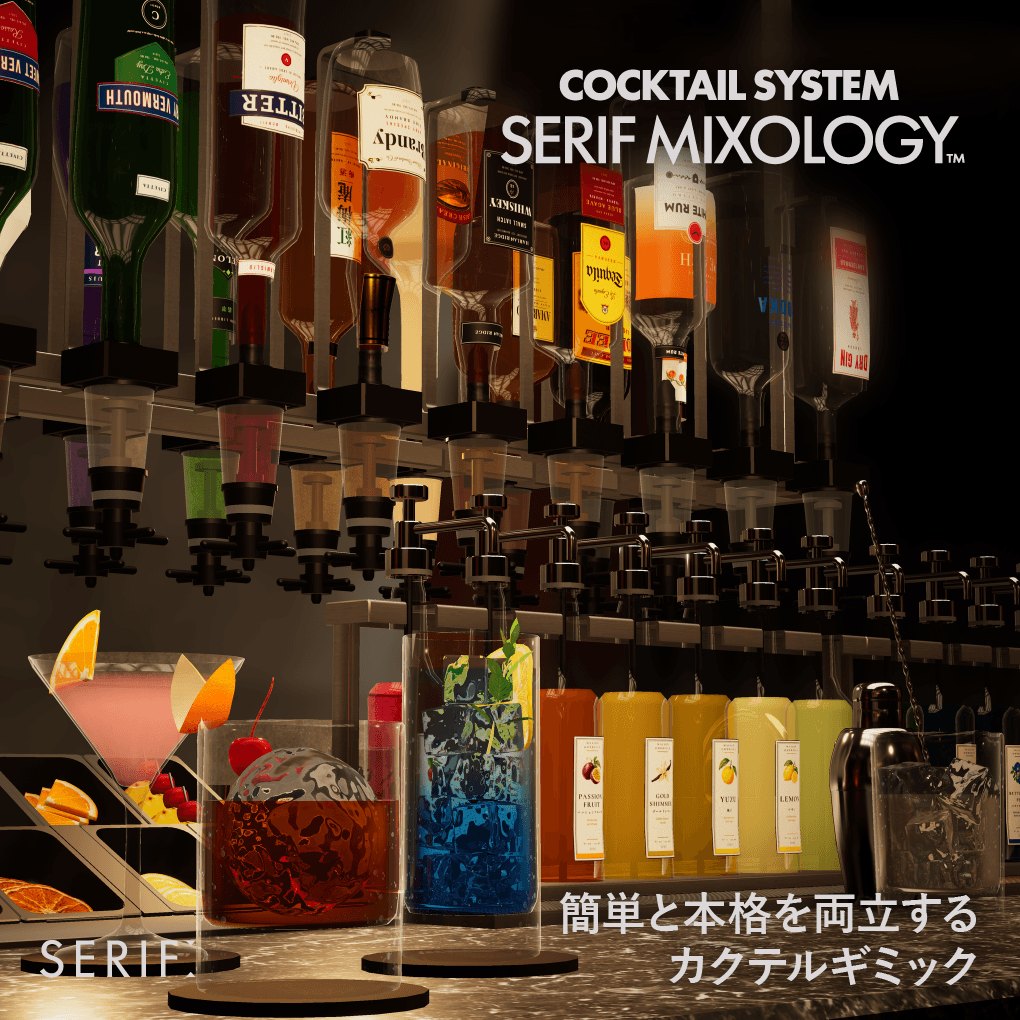
Serif Mixology is a cocktail system you can place in your VRChat world. You can reproduce authentic bar actions, such as pouring from bottles, adding ice and shaking in a shaker, or skip steps and make a drink quickly. It is up to you.
[Points where people often get stuck]
- After placing, run 「全セットを登録」 (Register all sets) — Whenever you place, duplicate or add a set, run the menu Serif ▸ Serif Mixology ▸ 全セットを登録 (Register all sets).
- Move only equipment marked 「⇄ 移動OK」 (Move OK), and change only its position and rotation — If you change the parent (hierarchy) or rename it, the wizard can no longer find the equipment (→ Moving equipment (Japanese)).
- Do not use Overrides ▸ Apply All — If you write a set placed in the scene back to the prefab, it stops working (→ Placement rules (Japanese)).
- Do not delete Assets/Serif/_UserData — This is where the recipes and ingredients you make in the wizard are stored (updates do not overwrite it).
- Back up before updating — Back up the whole project, and then import the new version (→ Update steps (Japanese)).
Editions and the two versions
Serif Mixology has two versions that differ in how you pour (the optic version and the hand-pour version). Which versions are included depends on the edition.
| Full Suite | Standard | |
|---|---|---|
| Optic version (fixed bottles) | ● | ● |
| Hand-pour version (hand-pour bottles) | ● | — |
| Guest menu | ● | ● |
| Everything else | Equipment, presets, the Cocktail Wizard and so on are all the same | |
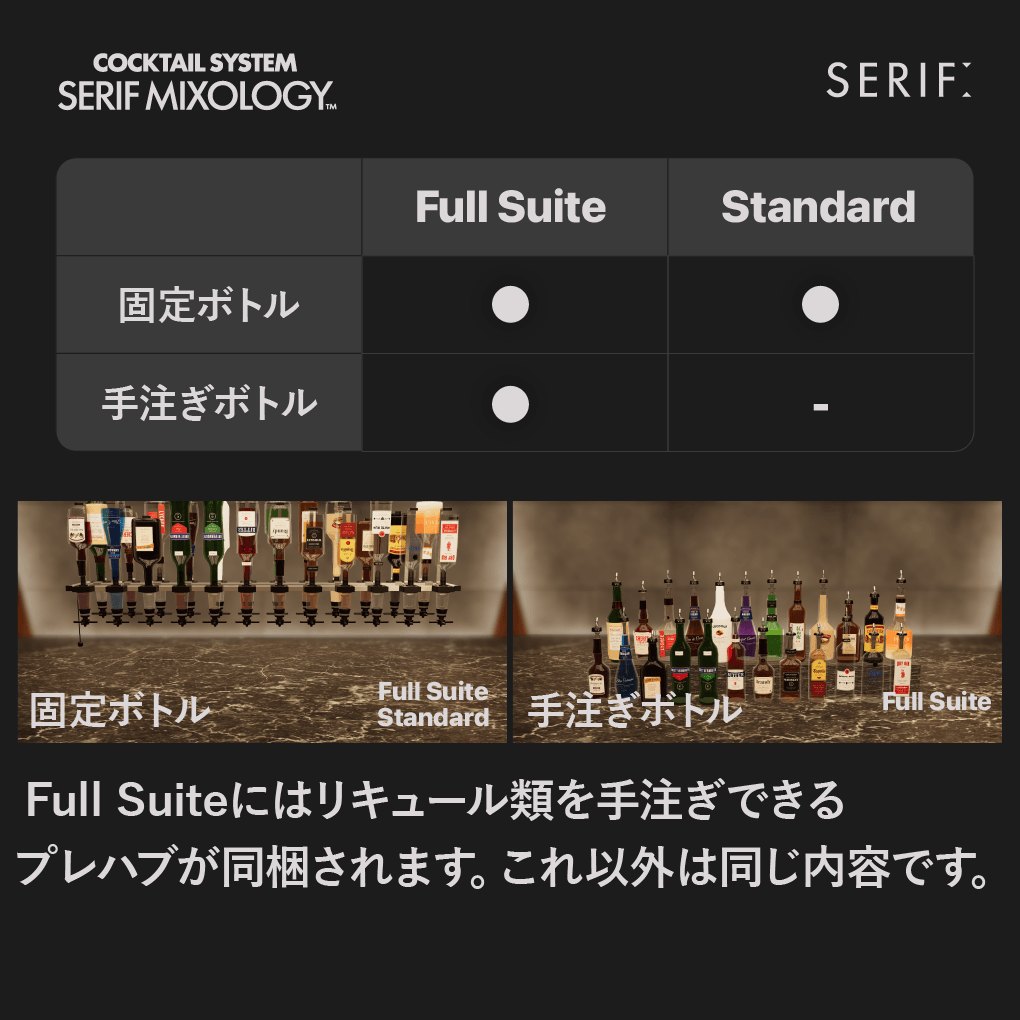
The packages inside are SerifMixology_FullSuite_v1.x.unitypackage for Full Suite and SerifMixology_Standard_v1.x.unitypackage for Standard (x is the version number). Standard is Full Suite without the hand-pour prefab and without the materials and spout models used only by the hand-pour version. All other files are the same (if you import Full Suite over Standard, they are treated as the same files).
Parts of this guide marked Full Suite only describe the hand-pour version. Standard does not include it.
Differences between the two versions
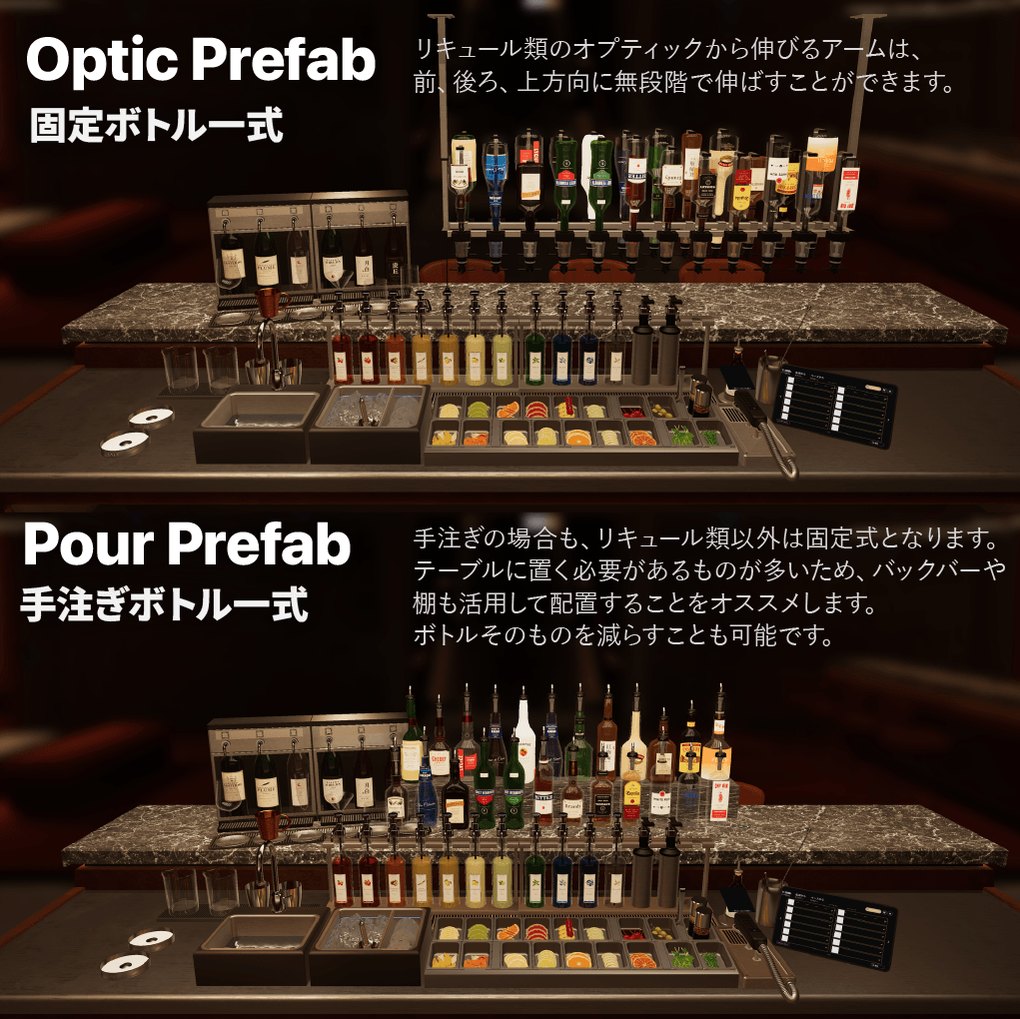
The two versions differ only in the liquor bottles (24 bottles). The other equipment, such as the syrup rail, wine dispenser, bitters and soda gun, is the same in both versions. The inner mechanism is the same too, and the ingredients on the shelf are always the same (ingredients you change in the wizard apply to both). With Full Suite, you can also place both versions in the same world.
| Optic version SerifMixology_Optic |
Hand-pour versionFull Suite only SerifMixology_HandPour |
|
|---|---|---|
| How liquor is poured | Press the glass up from below against the spout (optic) of an upside-down bottle on the shelf, and one shot comes out | Hold the bottle and tilt it, and one shot comes out (measured pourer). Set it upright to pour the next one |
| How the liquor bottles are placed | Three ways: hung from the ceiling, attached to the wall, or free-standing with no support (→ Mounting the optics (Japanese)) | Two rows on the top of the back bar. You can move each row, or each bottle |
| Number of liquor bottles | 24 bottles in both (you swap the contents in the wizard) | |
| Good for | Bars that want to make drinks quickly and neatly; counters with a ceiling | Bars that want the feel of making a drink by picking up bottles; bars that want to show the bottles as decoration |
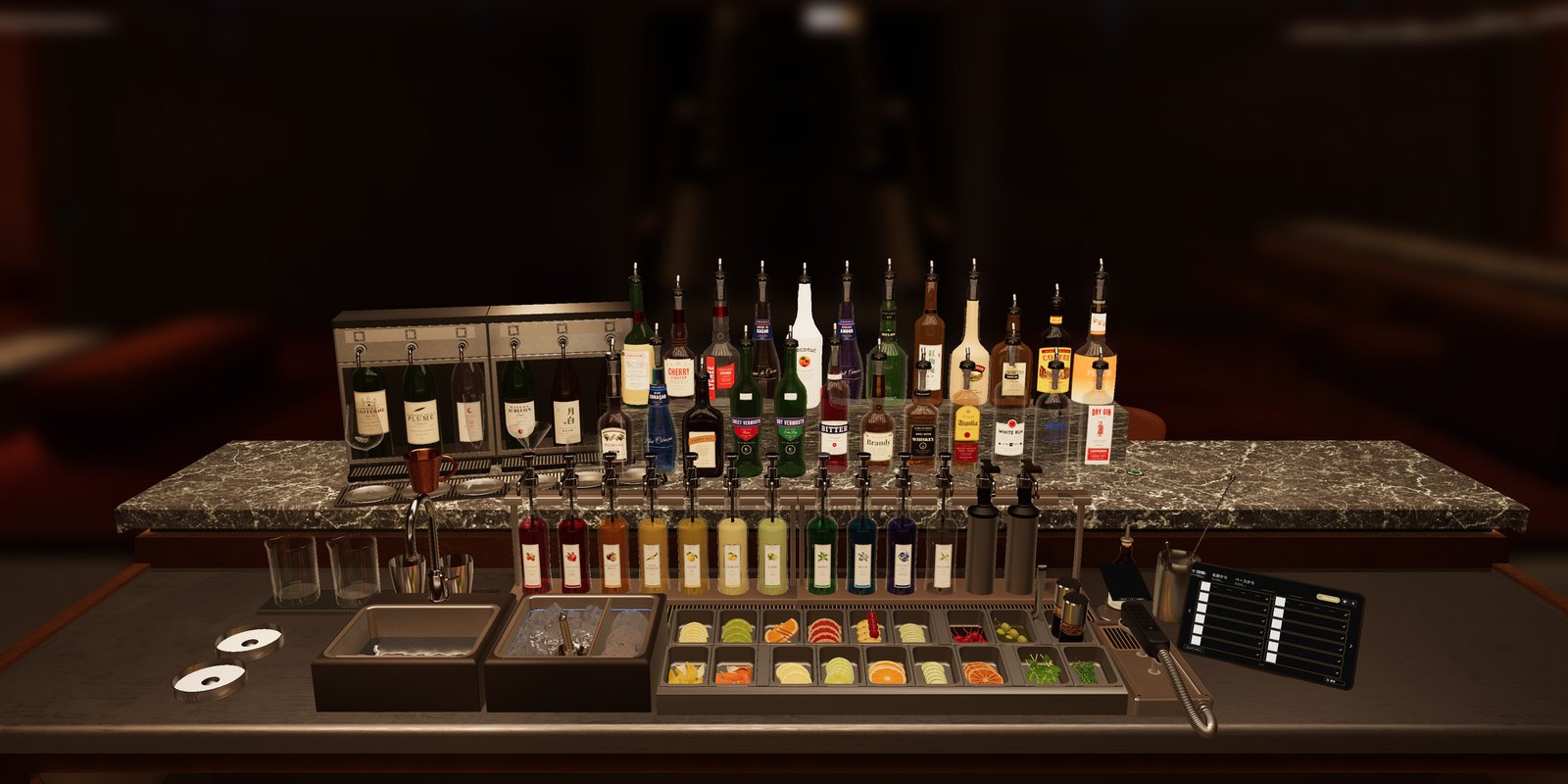
Both versions include a soda gun (15 kinds of soda and juice), the syrup rail, the wine stand, bitters, garnishes, an ice machine, a sink, a shaker, a mixing glass, salt and sugar for the glass rim, a glass dispenser, and the bartender's tablet (→ Equipment list (Japanese)).
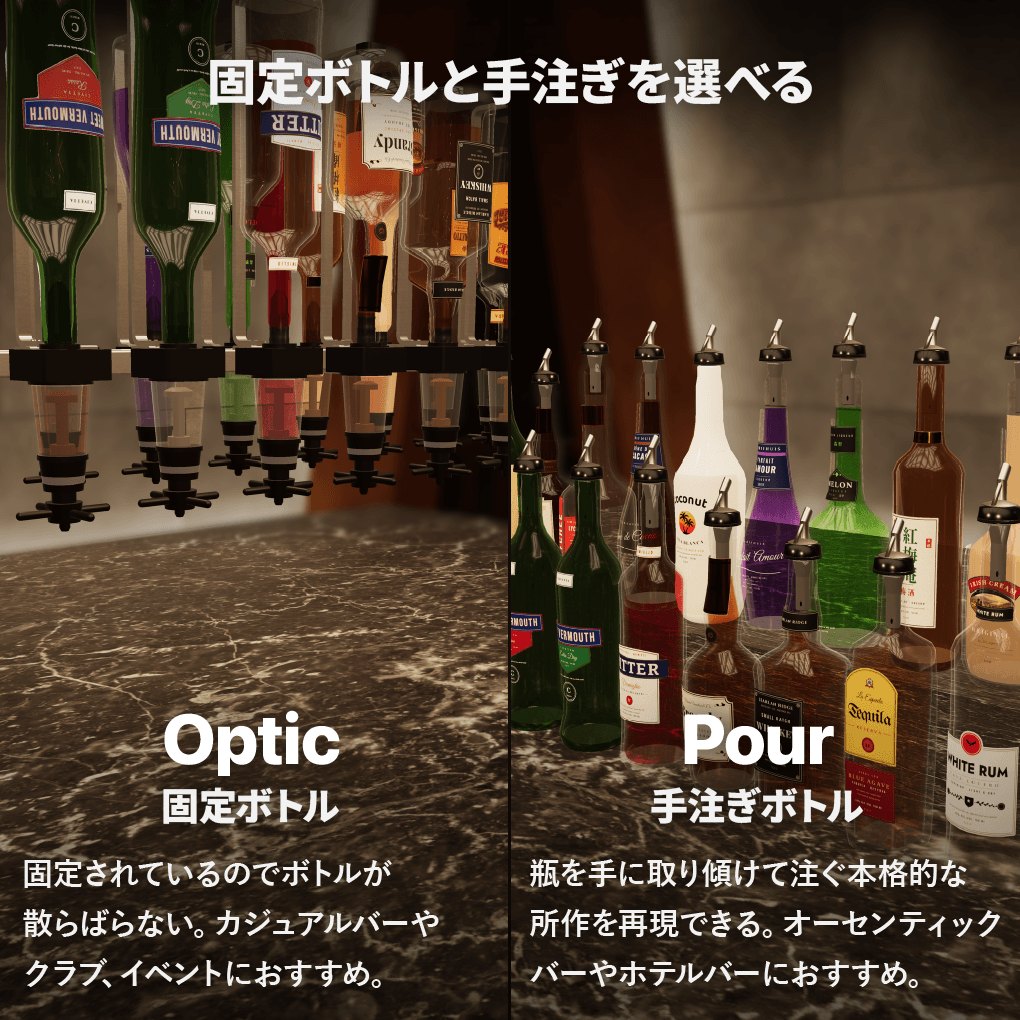
Left = optic version (upside-down bottles on the shelf) / Right = hand-pour version (pick up the bottle and pour)
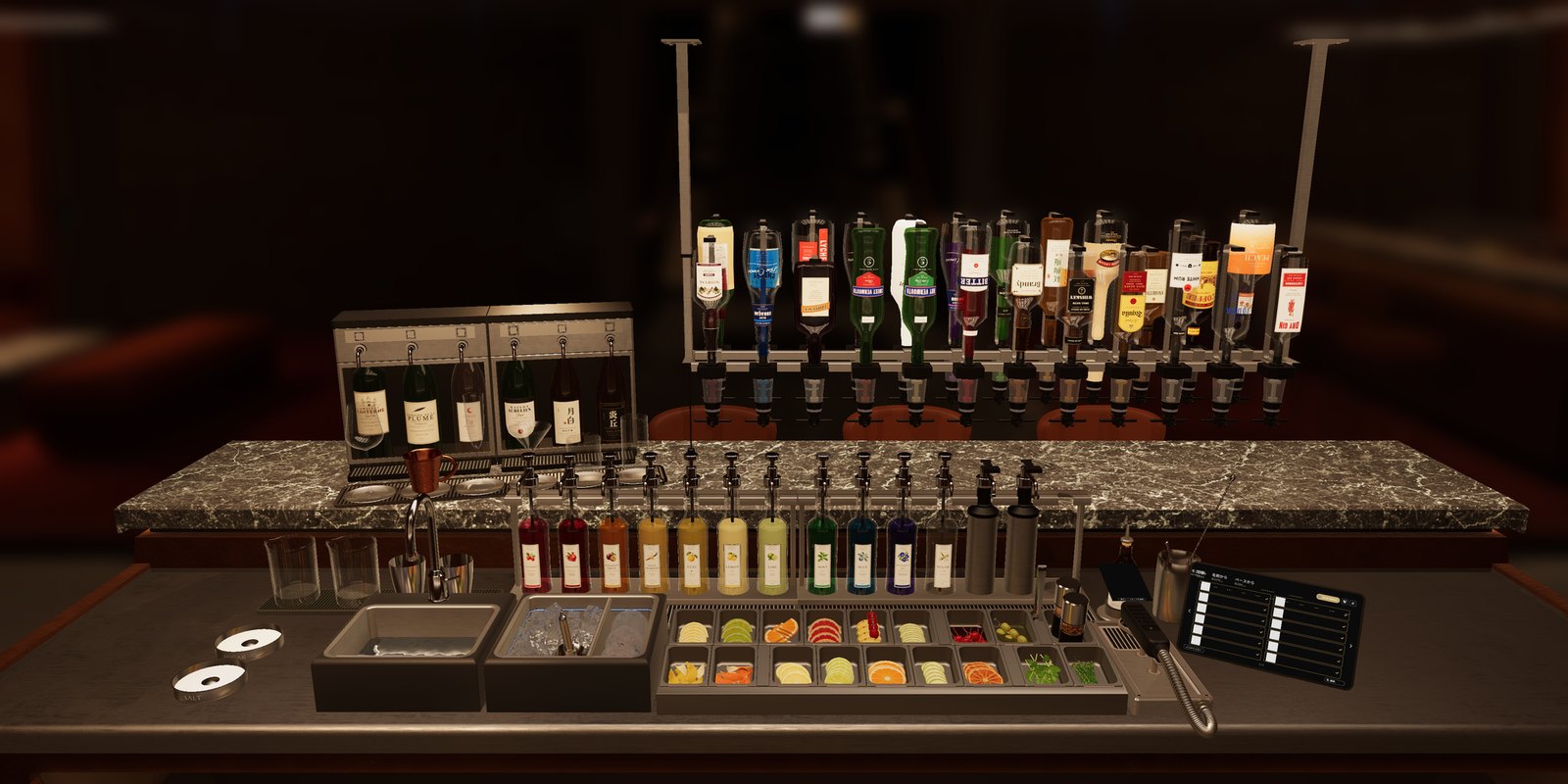
The full sets. Left = optic version / Right = hand-pour version
Guest menu
SerifMixology_Menu is a menu tablet that guests can only look at (its body is champagne gold, so you can tell it from the bartender's tablet). It is a separate prefab from the sets, and you can place as many as you like on counters and tables. For details, see The guest menu.
Requirements
- Unity: 2022.3.22f1 (the version VRChat specifies)
- SDK: VRChat Worlds SDK (UdonSharp is included in the SDK)
Tested with: Worlds SDK 3.10.4 (development) and 3.10.5 (importing into a new project) - Supported platform: PC only (Quest / Android is not supported)
No prerequisite assets. It works with the VRChat Worlds SDK alone. You do not need to import any separate shader or gimmick assets.
Making cocktails is designed for VR. In desktop mode, only receiving a glass, holding it, drinking and looking at the tablet are supported. The making actions, such as pouring, shaking, adding ice and garnishes, are not supported on desktop, because you cannot match the tilt and depth (some of them may work, but we do not guarantee it).
You can also add it later to the project of the world you are building now.
About support
⚠ Before you contact us
Most problems can be solved with the FAQ and troubleshooting (Japanese), Placement rules and specs (Japanese), and Specs and notes. Sorry for the trouble, but please check them first.
What support covers
| Supported | Not supported |
|---|---|
|
• Setup up to importing, placing and registering the sets • Adding, changing and assigning recipes and ingredients in the wizard • Uploading with everything placed as it is • Changing the Inspector values described in this guide (except those marked "Modification: not supported") |
• Changing Inspector values not described in this guide • Replacing materials, modifying prefabs, changing scripts • Problems that occur in combination with other assets |
A description with this badge means "we show how to do it, but it is not covered by support." Modification: not supported
Modifying the product is free for you to do (→ Terms of Use). But we cannot try your modified state in the same way on our side, so we have to treat it as not supported.
When you report a problem
If you include the following, we can find the cause faster.
- The product version (example: v1.0)
- VR or desktop
- How many people were in the instance, and whether you were the master (the first person who joined)
- Whether it was right after entering the world (right after joining late)
- What you did just before it happened
- Whether the same thing happens in the sample scene
Contact
For support such as usage questions and bug reports, please use the official Serif Discord (https://discord.gg/E5b6FhfMCg).
For questions about the license or contact about corporate use, you can use Discord, or you can send a message from the BOOTH product page.
💡 For general Unity questions, asking an AI such as ChatGPT is often a quick way to get an answer. Feel free to try it.
From setup to placement
This chapter explains, in order, how to place Serif Mixology in your world and get it working. There are 6 steps.
[For first-time users]
This guide is written for people who have uploaded a world or an avatar with VCC (VRChat Creator Companion). If VCC itself is new to you, please follow beginner blog articles or videos as well.
Also, uploading a world requires a Trust Rank of New User or higher.
Prepare a world project
Serif Mixology is something you place in a world. First, prepare the world project where you will place it.
- If you will place it in a world you are building now — You can use that project as it is. Back up the project before you start.
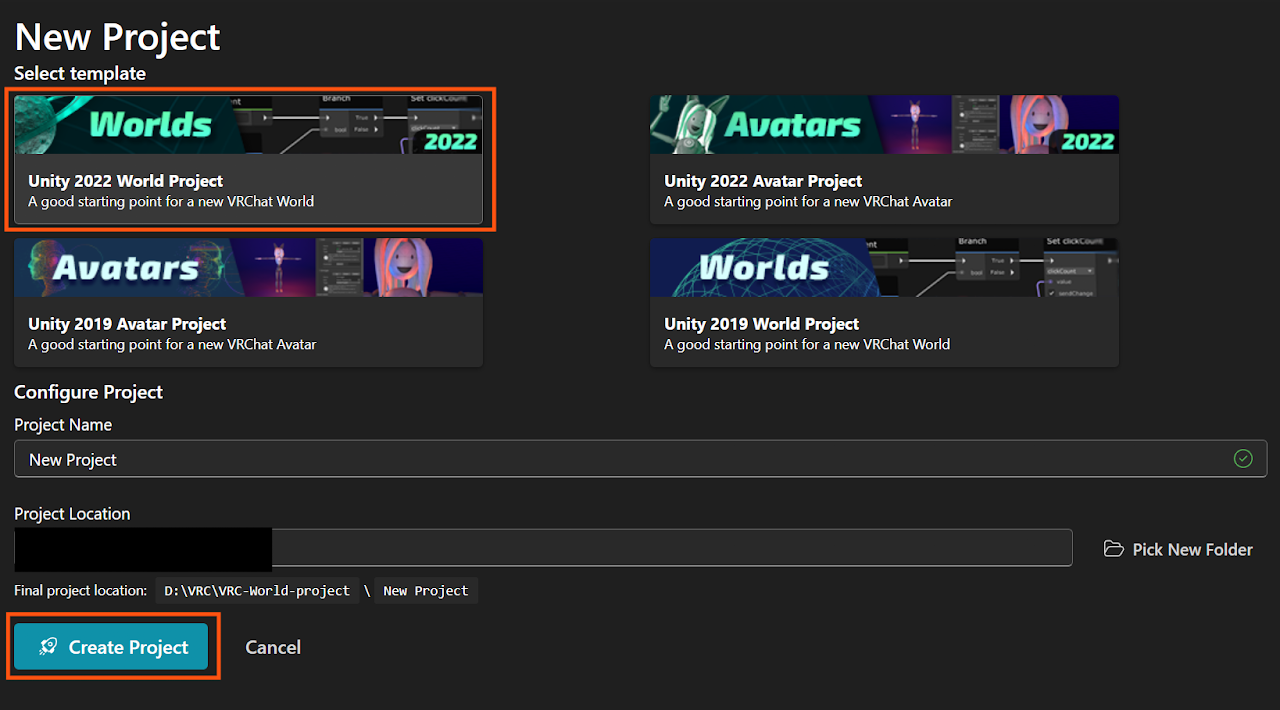
- If you want to try it on its own first — In VCC, choose 2022 World Project from Create New Project and create a new project.
On the Manage Project screen, check that VRChat SDK - Worlds is up to date.
Import the product
Open the project in Unity, and from Assets > Import Package > Custom Package..., load the .unitypackage of the edition you bought (SerifMixology_FullSuite_v1.x.unitypackage or SerifMixology_Standard_v1.x.unitypackage). Leave all items checked and press Import.
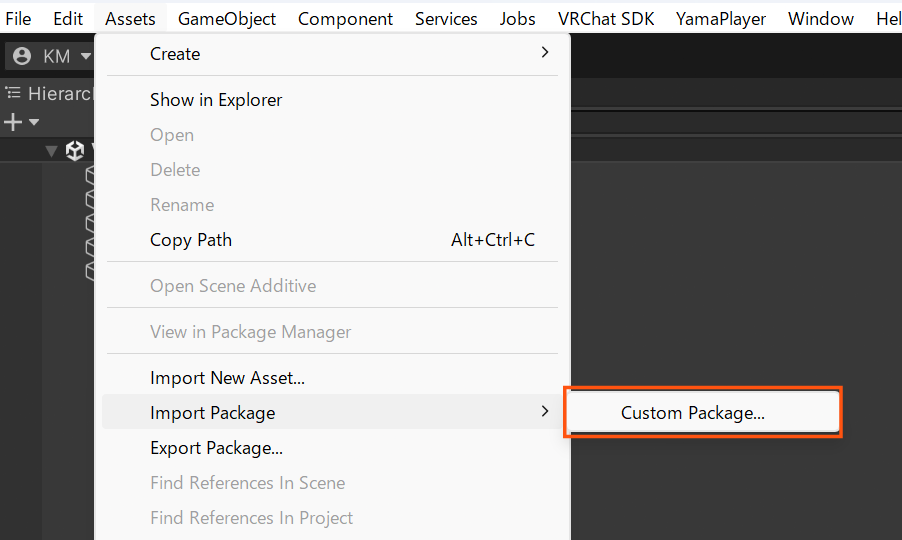
When the import finishes, scripts start compiling. Wait until the loading indicator at the bottom right of the screen stops.
The product is imported into Assets/Serif/SerifMixology/. Your own recipes and ingredients made in the wizard will be created later in Assets/Serif/_UserData/ (→ Included prefabs and folders (Japanese)).
Place a set
Open your world's scene, and drag the prefab you want from Assets/Serif/SerifMixology/Prefabs/ into the scene.
- SerifMixology_Optic — the optic version (measure and pour from the bottles on the shelf)
- SerifMixology_HandPour — the hand-pour version (pour by holding the bottle) Full Suite only
- SerifMixology_Menu — the guest menu (a look-only tablet; as many as you like; place it together with a set)
Placement tip: drop it straight onto the counter top
The origin of a set is at the position of the garnish tray, at the height of the counter top. In the Scene view, point the mouse at the counter top (a surface with a collider), around where you want the garnishes, and drop it. Then the things that sit on the counter top (garnishes, the syrup rail and so on) land exactly at the counter-top height.
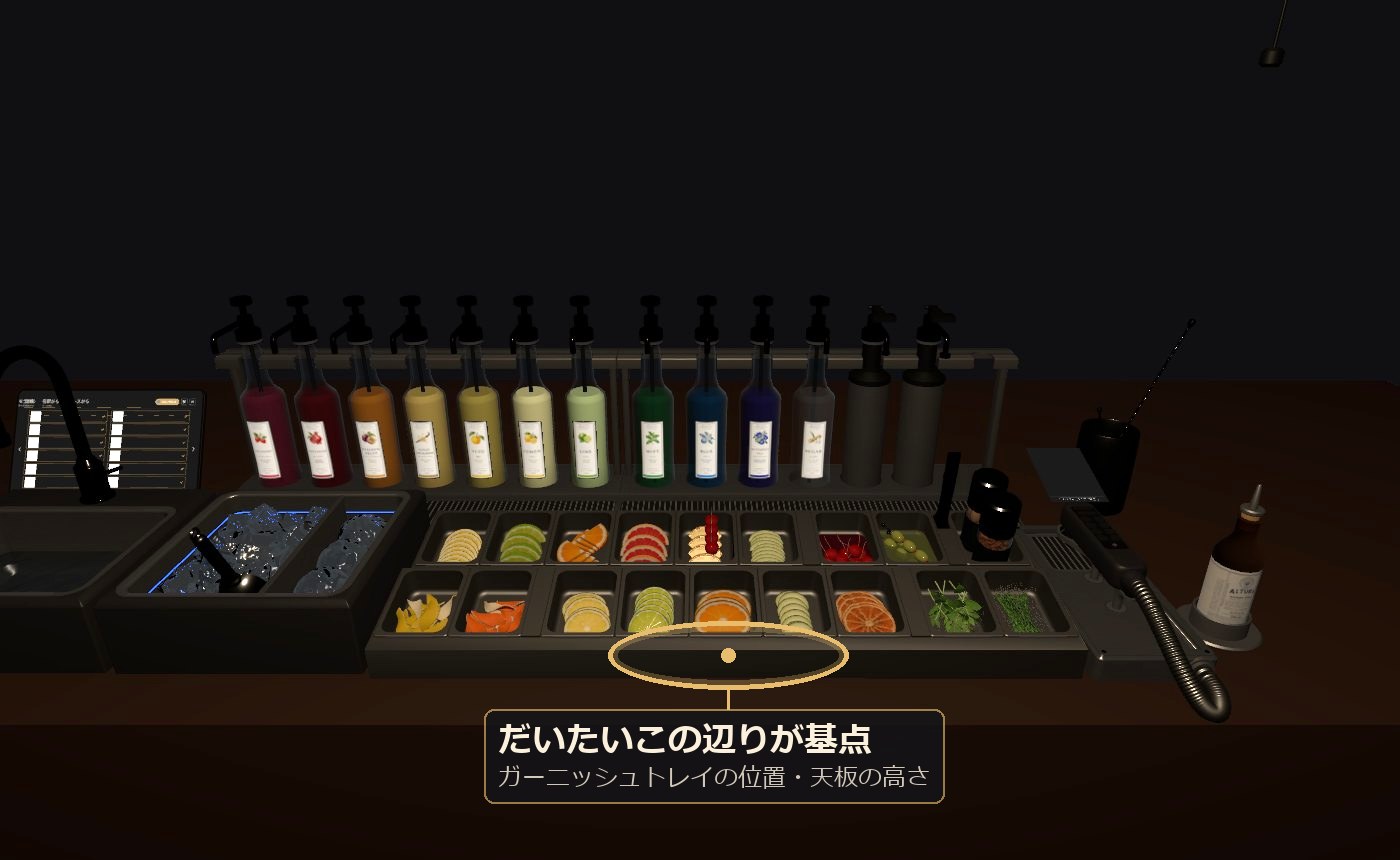
The origin of a set is roughly around the garnish tray, at the counter-top height (the screenshot is the sample scene)
The standard layout assumes a bar where the aisle between the front counter (optics, syrups, garnishes, sink and so on) and the back bar behind it (wine, mixing glass, glass dispenser and so on) is 1.3 m. Move the equipment one by one to fit your bar (→ Moving equipment (Japanese)). The optic version's shelf hangs from the ceiling, and the distance to the ceiling can be adjusted in the Inspector (→ Mounting the optics (Japanese)).
Run 「全セットを登録」 (Register all sets)
After placing, run the menu Serif ▸ Serif Mixology ▸ 全セットを登録 (Register all sets). This creates the glass numbers and the equipment list, and connects the sets in the world to each other.
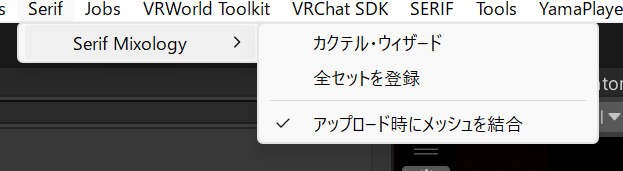
Run 「全セットを登録」 (Register all sets) again each time in these cases:
- When you place (add) a set or a guest menu
- When you duplicate equipment or glasses
It is also registered automatically when you press 「適用」 (Apply) in the wizard. Even if you forget, a check appears before upload and stops it, so a broken world will not be published as it is.
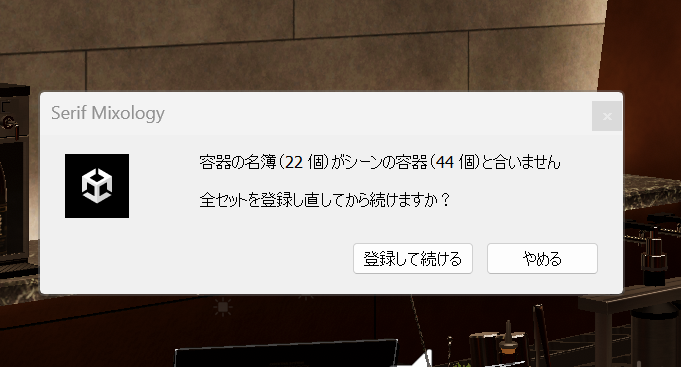
If you forgot to register, this check appears before upload. Press 「登録して続ける」 (Register and continue), and the sets are registered
When you want to change recipes or ingredients, open the menu Serif ▸ Serif Mixology ▸ カクテル・ウィザード (Cocktail Wizard), make your changes, and then press 「適用」 (Apply) at the bottom of the window. At first, you can leave everything as it is (→ Cocktail Wizard (Japanese)).
Set up lighting
It works without them, but placing the following two makes liquids and glasses look much nicer. They do different jobs, so ideally you have both.
① Reflection Probe (reflections)
Place one Reflection Probe near the bar, turn Box Projection on, and fit the box to the size of the room. The surroundings are faintly reflected on the rims of glasses and liquids.
If there is none, the Environment Reflections (sky) in Lighting are reflected, so the rims pick up a faint sky color (with a blue sky indoors, the rims look slightly bluish-white).
② Light Probe (brightness)
In a room where you bake lights, place a Light Probe Group around the bar (at the height where you move while holding glasses) first, and then bake. Without it, the glasses and bottles in your hand do not match the room's brightness, and they look too dark (or too bright) and out of place.
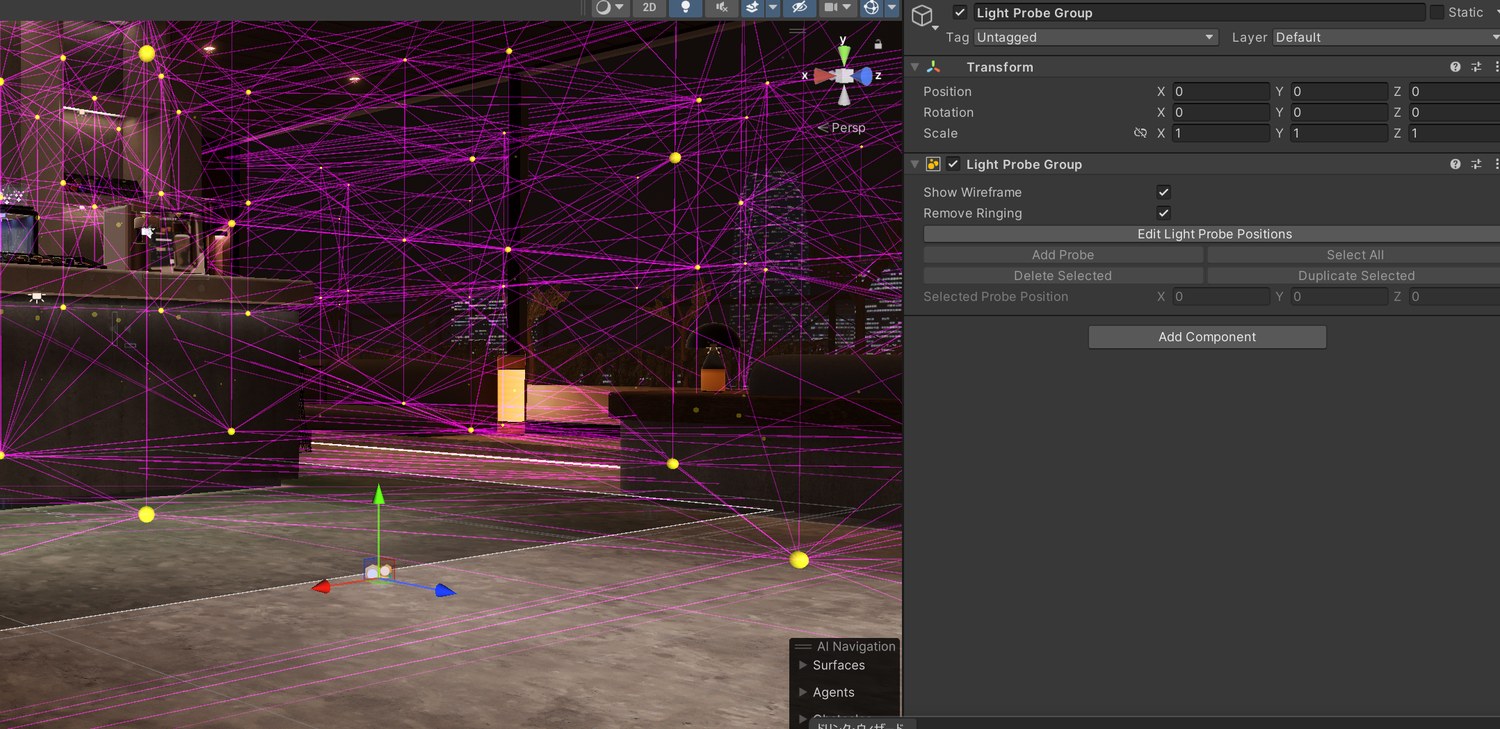
An example with a Light Probe Group placed (the screenshot is from another product's demo world)
Liquids are lit by ambient light, Light Probes and one directional light. Real-time point lights and spot lights do not affect liquids (they do affect the bodies of the glasses and bottles).
Upload, and try it in VR
Save the scene and, as usual, run Build & Publish from the Builder tab of VRChat SDK > Show Control Panel. Check that the build target is Windows (PC).
A check runs automatically before upload. If there is a problem you could not notice until you enter the world, such as forgetting 「全セットを登録」 (Register all sets), it stops here. When it stops, the reason is shown in the Console, so follow it to fix the problem (most cases are fixed by 「全セットを登録」).
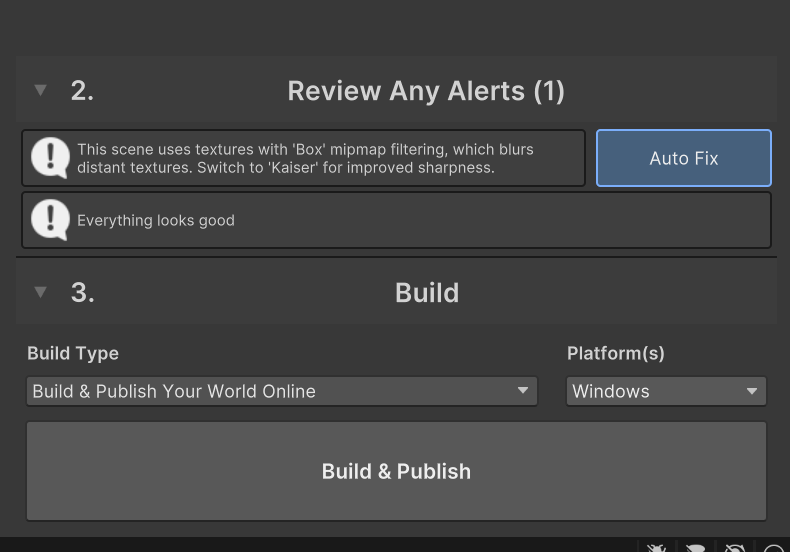
Once the upload is done, go into the world in VR and make one drink. We recommend choosing a Highball from the 「定番」 (Classics) tab on the tablet and following the lit parts in order. Good work!
Using it in the world
Controls at a glance
| What you want to do | How |
|---|---|
| Pour from an optic | Hold the glass and press it up from below against the bottle's spout (one shot per press) |
| Pour from a hand-pour bottleFull Suite only | Hold the bottle and tilt it for one shot. Set it upright to pour the next one. Keep the glass right under the spout |
| Pour soda or juice | Hold the soda gun, choose from the list, and it pours only while you hold Use (the trigger). While a recipe is being guided, it stops by itself at the needed amount (→ The soda gun) |
| Add a round ice ball | Grab the round-ice spot of the ice machine, and a round ice ball appears in your hand; put it in the glass (as many times as you like. It also goes in if you put the glass into the round-ice tank) |
| Pour from a shaker or mixing glass into a glass | Keep it upright, carry it over the glass, and tilt it there (it can pour if it is above the glass at the moment you tilt it). For a shaker with its cap on, press Use while it is tilted above the glass, and the cap comes off so you can pour right away |
| Put salt or sugar on the glass rim | Touch the glass rim to the rim dish. Do this before putting liquid in (for drinks that are shaken, after shaking and before pouring into the glass) |
| Drink | Hold the glass and you can drink while holding Use. You cannot add ingredients, ice or garnishes to a glass you have taken a sip from (to make it again, empty it in the sink) |
| Empty a glass | Put the glass (or shaker and so on) into the sink and it becomes empty |
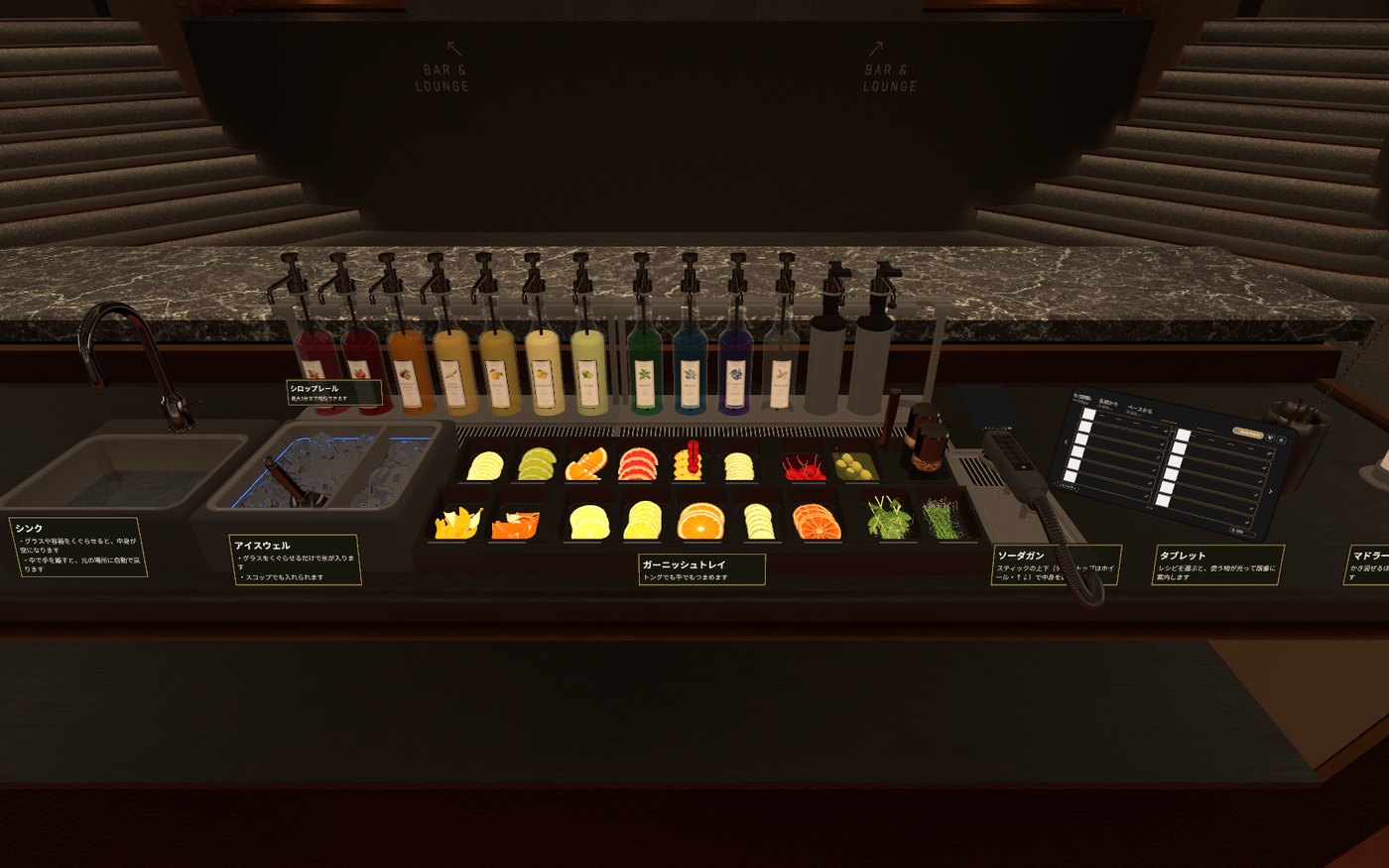
The set seen from the bartender's side
How to hold things: In VR (Index and so on), you hold things only while you grip. If you let go, the item is left where it is. On desktop and with a gamepad, you keep holding by clicking.
The tablet
On the bartender's tablet, you choose the recipe to make. When you choose one, the steps are shown, and the lamps of the equipment you will use light up.
- 定番 (Classics) — 12 common drinks (ハイボール (Highball), ジントニック (Gin & Tonic), モスコミュール (Moscow Mule), ブルーハワイ (Blue Hawaii), カルーアミルク (Kahlua Milk), テキーラサンライズ (Tequila Sunrise), モヒート (Mojito), ギムレット (Gimlet), ネグローニ (Negroni), オールドファッションド (Old Fashioned), キールロワイヤル (Kir Royale), ドライマティーニ (Dry Martini))
- 名前から (By name) and ベースから (By base spirit) — You can look through all recipes in order of name, or by base spirit
- Custom tabs — You can make and show tabs that collect only the recipes you choose, such as your shop's menu (→ Standard and custom tabs (Japanese))
When you enter the world, the 「はじめての方へ」 (For first-time users) guide is shown. Tap the board to close it, and the 「はじめての方へ」 button at the bottom left of the list brings it back.
The tablet's three buttons:
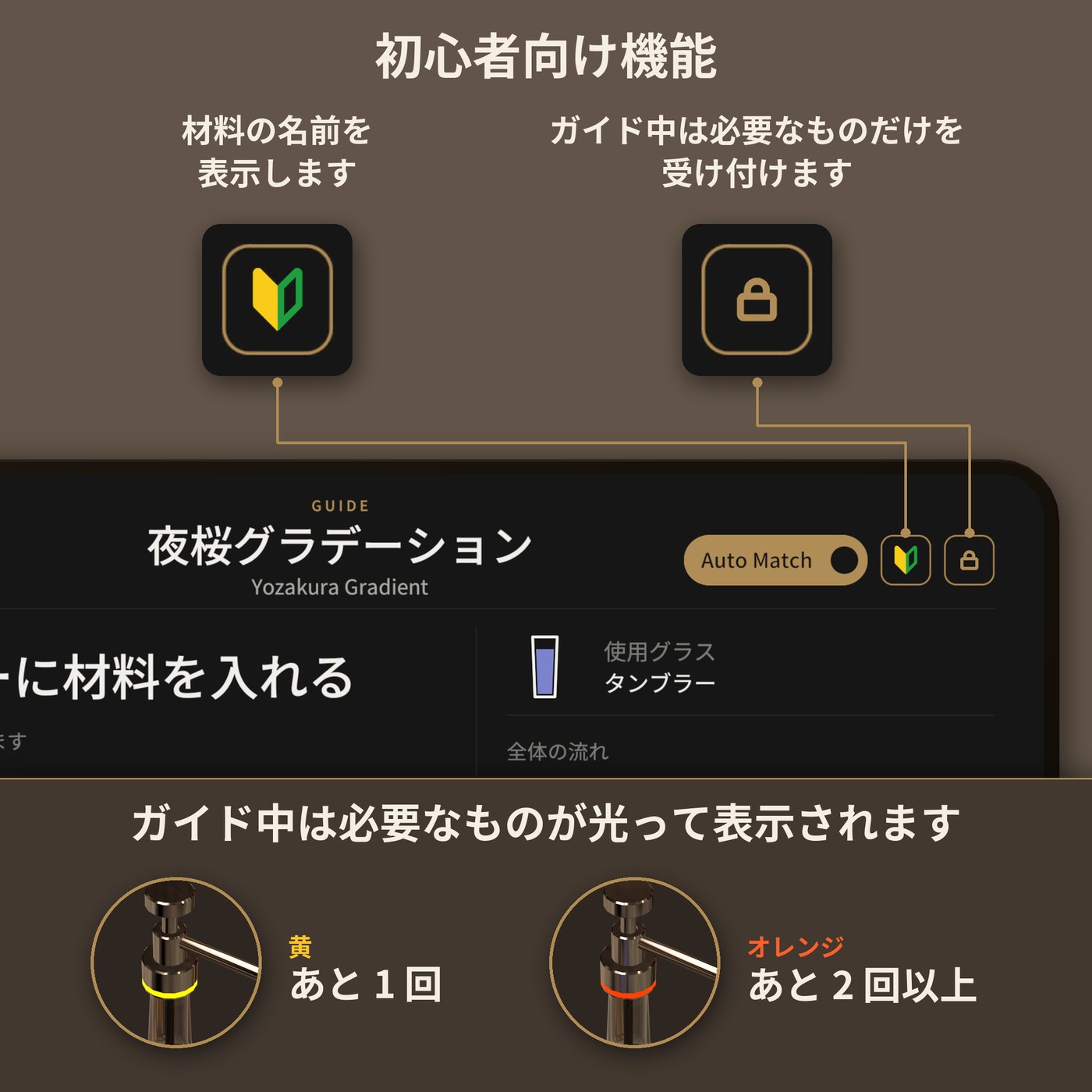
- Auto Match — Even if you make a drink without choosing a recipe, if it matches any recipe, it gets the finished look. It starts ON for everyone, and looks the same to everyone (if you turn it OFF, only the screen of the person who pressed it stops showing the finished look)
- 若葉 (beginner leaf) — Show or hide the name tags on bottles and so on
- 鍵 (key) — Beginner assist. Only things lit by the guide are accepted (you can use it only while a recipe is chosen)
The tablet and the guide work only on your own screen. No matter how many people look at the same tablet, the screen shown, the chosen recipe, the guide lamps, the name tags and the key (beginner assist) are separate for each person, and other people cannot see them. Two bartenders can also choose different recipes and make drinks at the same time.
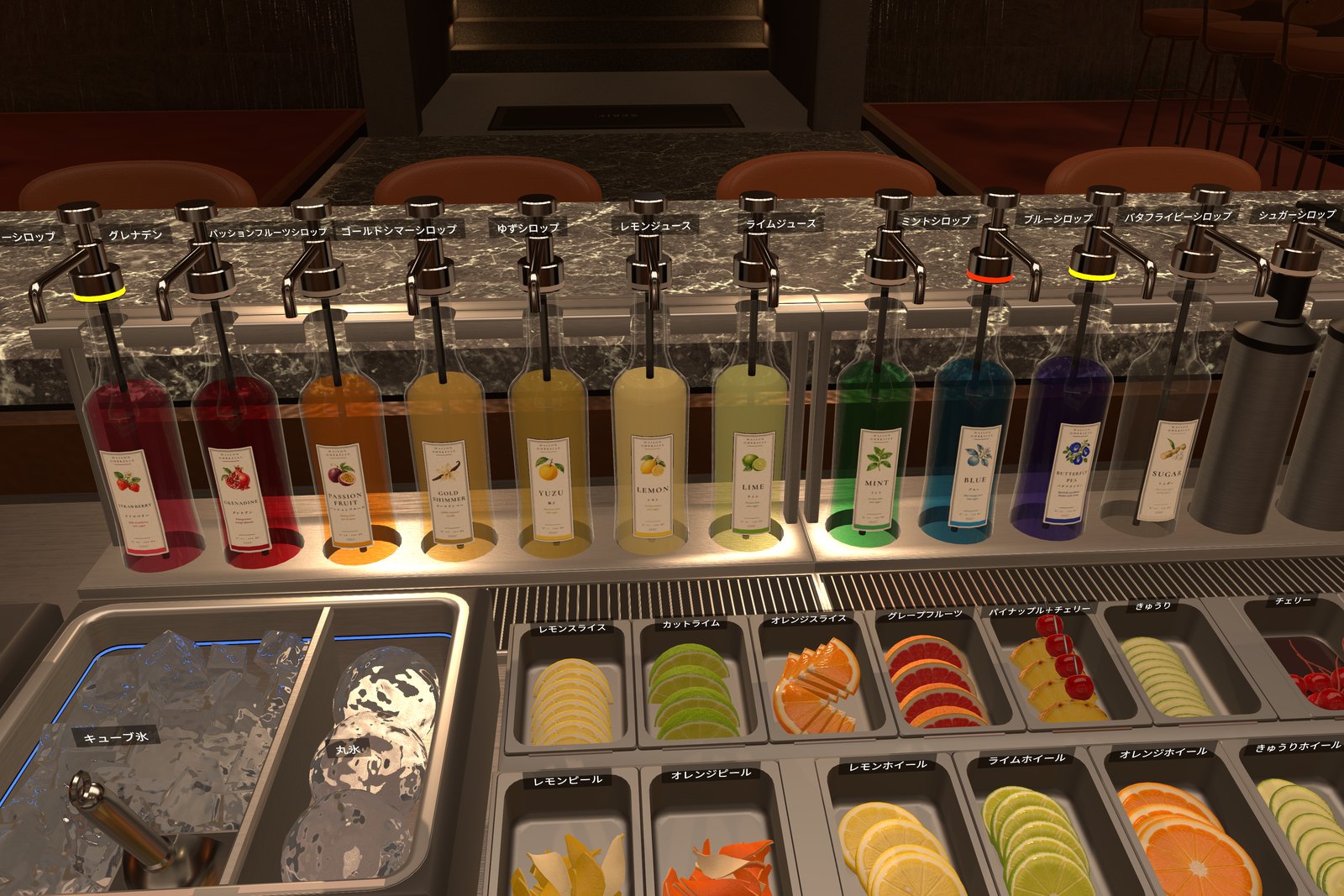
Name tags shown with the 若葉 (beginner leaf) button
When you go off the recipe, the tablet shows 「自由な一杯として続けられます」 (You can continue it as a free-style drink). If you want to start over and follow the order, empty the container in the sink and then choose the recipe again.
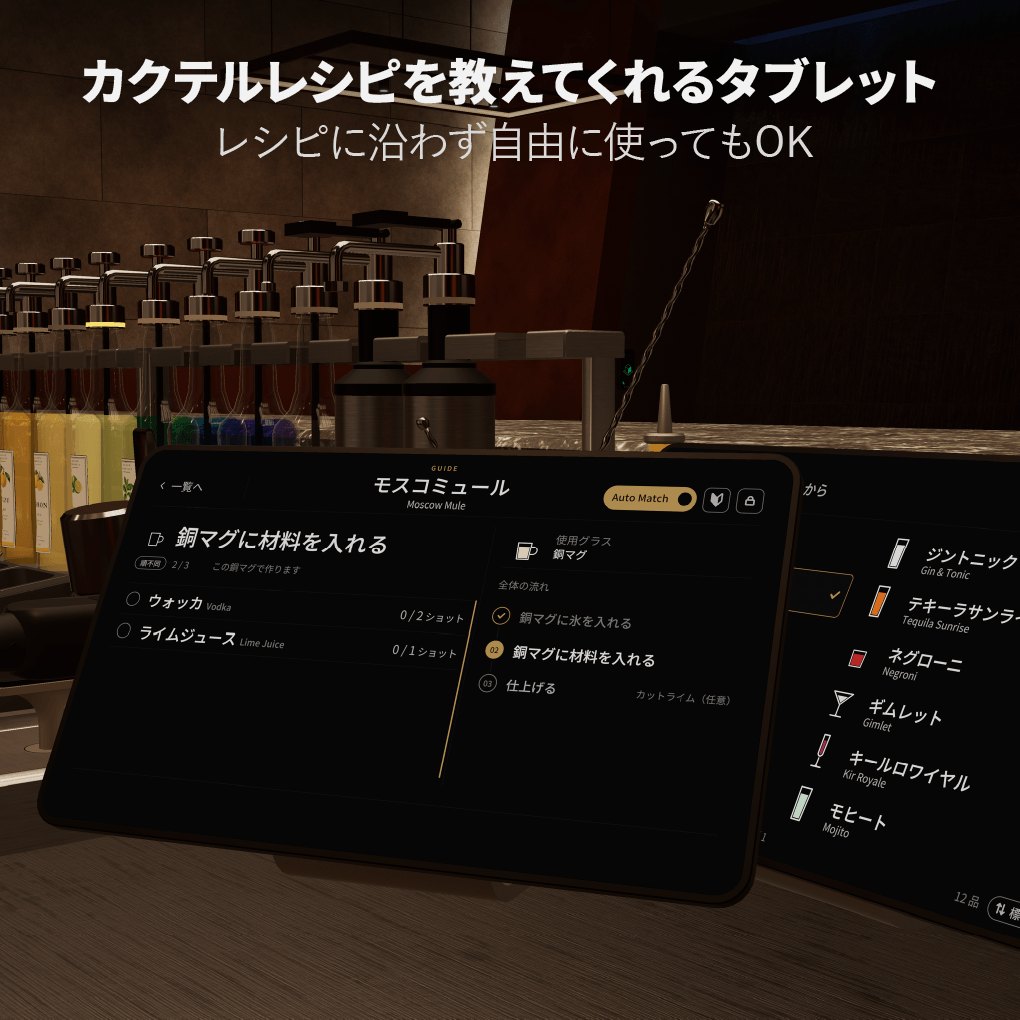
When you choose a recipe, the steps are shown
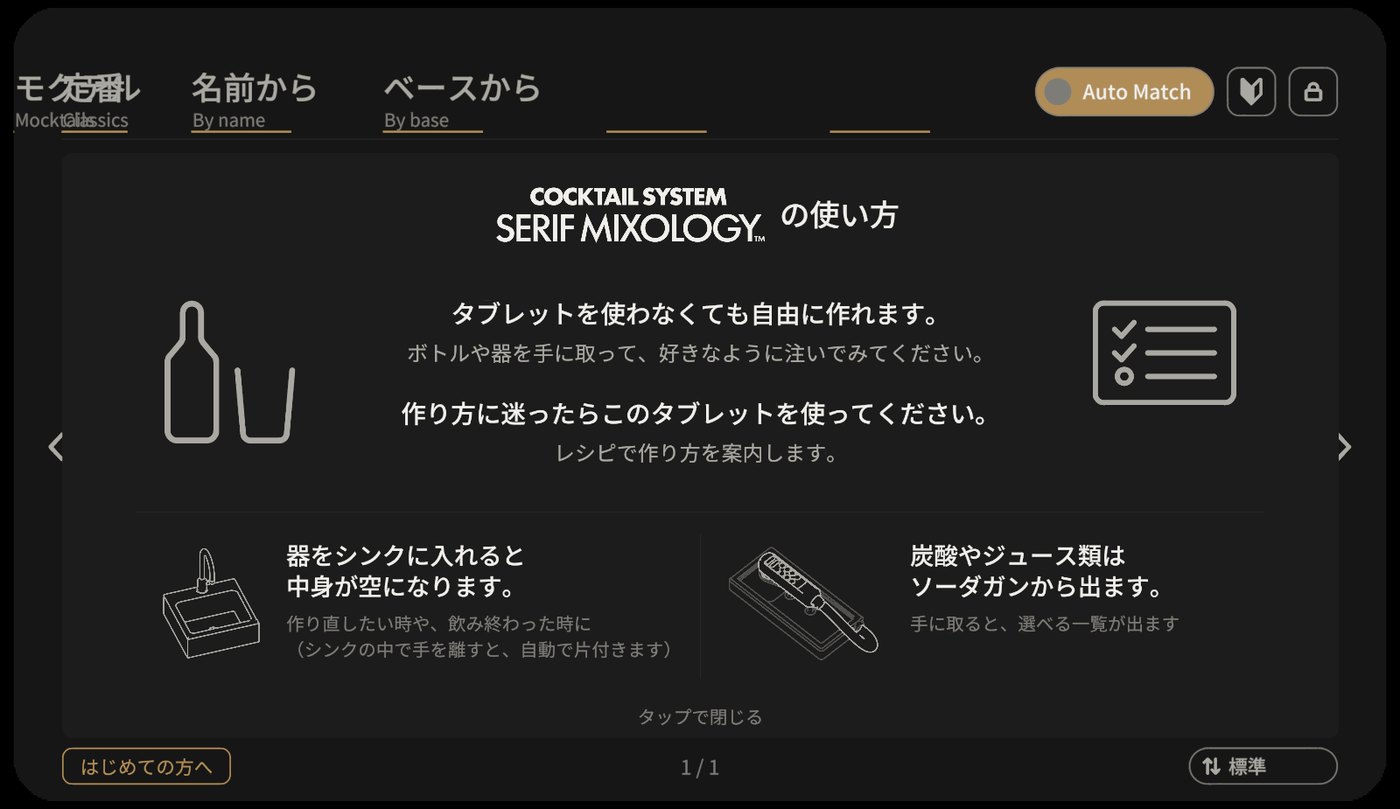
The 「はじめての方へ」 (For first-time users) guide shown when you enter the world
The guide lamps
When you choose a recipe, the lamps of the bottles and tools to use next light up (only the person who chose the recipe sees them lit).
- Orange — 2 or more times left
- Yellow — 1 time left
- White — while pouring (while the glass is pressed against an optic), and for a moment when everything to be added from that equipment has been added
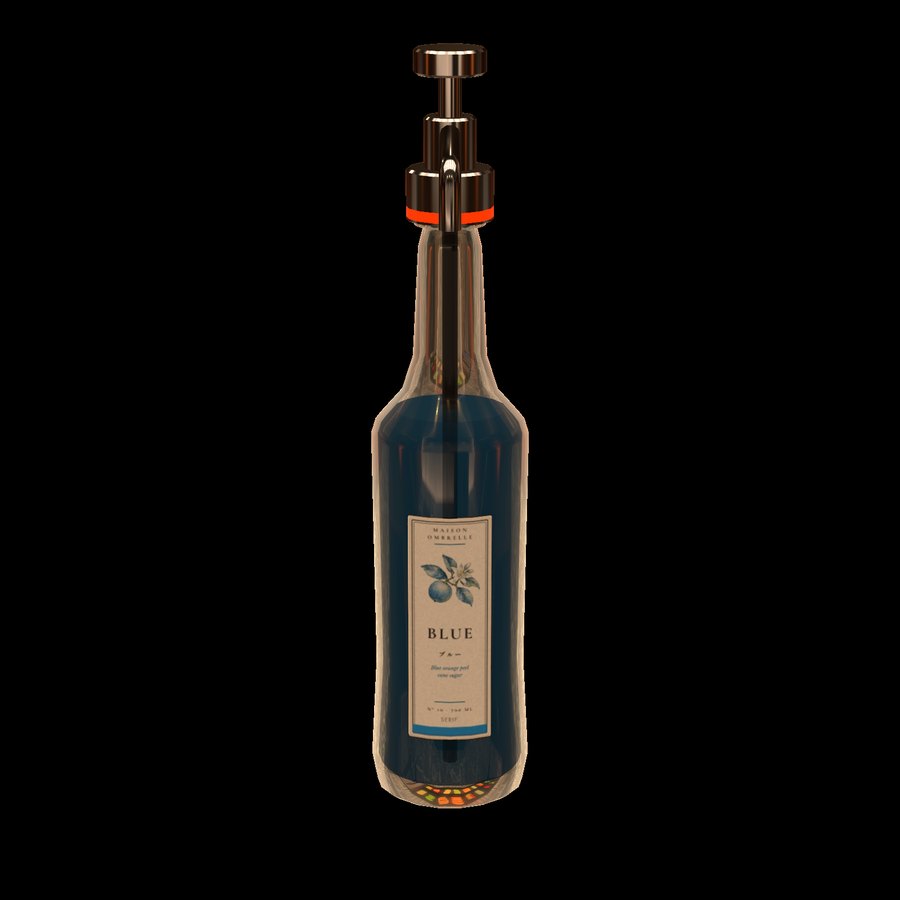
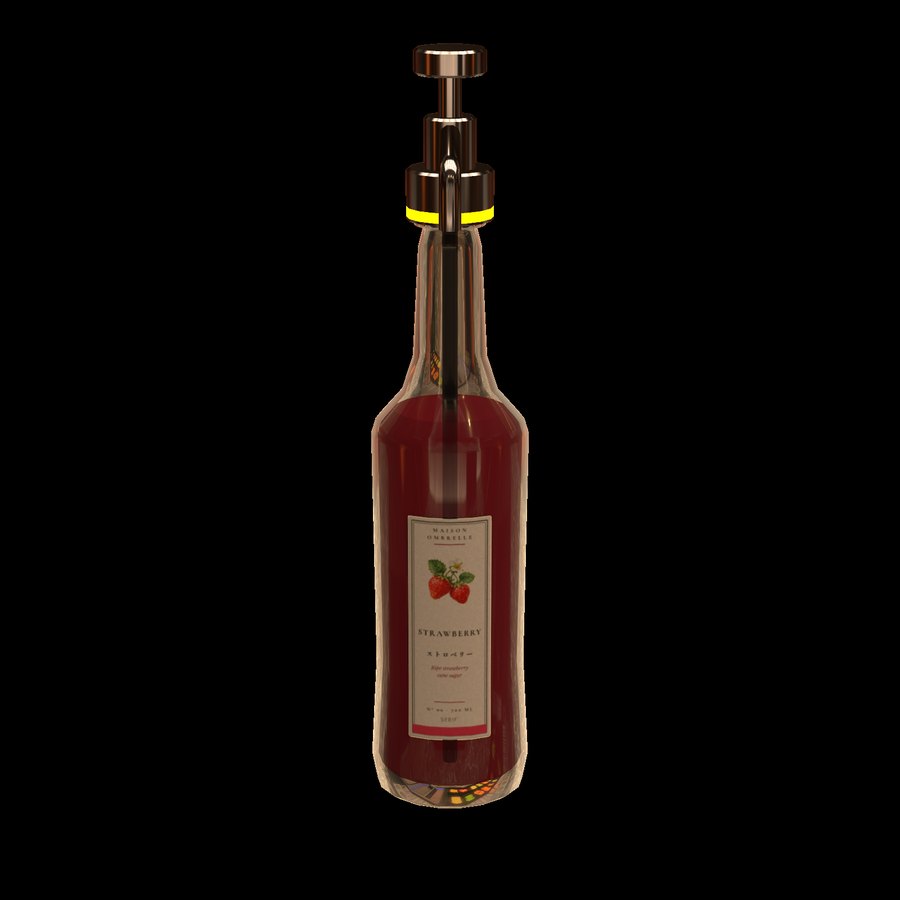
Left = orange (2 or more times left) / Right = yellow (1 time left)
Glasses, sink and the ↻ buttons
One glass at a time appears at each spot of the glass dispenser, and when you take one, the next appears. However, the number of glasses is limited. If a spot stays empty, all glasses of that type are in use (it is not broken). A glass you empty in the sink goes back to standby, and comes out again when a spot is free. If you run short, the world's creator can increase the number in the wizard (→ Number of glasses (Japanese)).
| Button | When you press it |
|---|---|
| Coral ↻ (recall all) The front left corner of the glass dispenser tray | Washes the glasses, shakers and mixing glasses of all sets and returns them to their original places. The contents disappear. Items someone is holding stay as they are. Use it at the end of a service period or at closing time (for everyday refilling, use the sink) |
| Green ↻ (return) The foot plate at the back of the bar mat and the tablet stand | Only returns that tool or tablet to its original place |
The reach of the buttons you press (return, recall all, the wine pour button, the optic height switch) is 0.3 m. In VR it is measured from your hand, so you can press it by bringing your hand close. On desktop it is measured from your eyes (viewpoint), so you cannot reach it unless you move close.
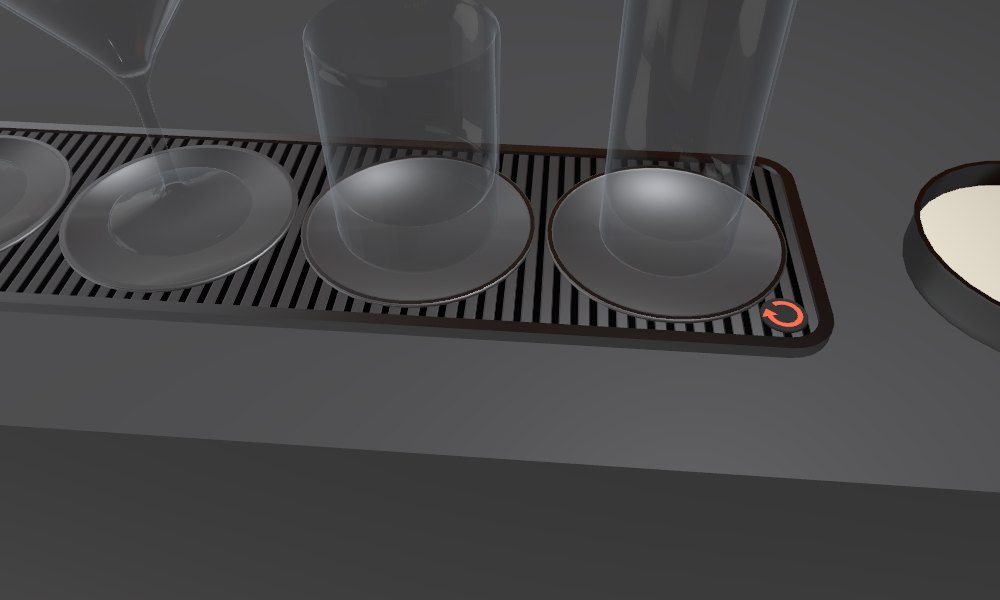
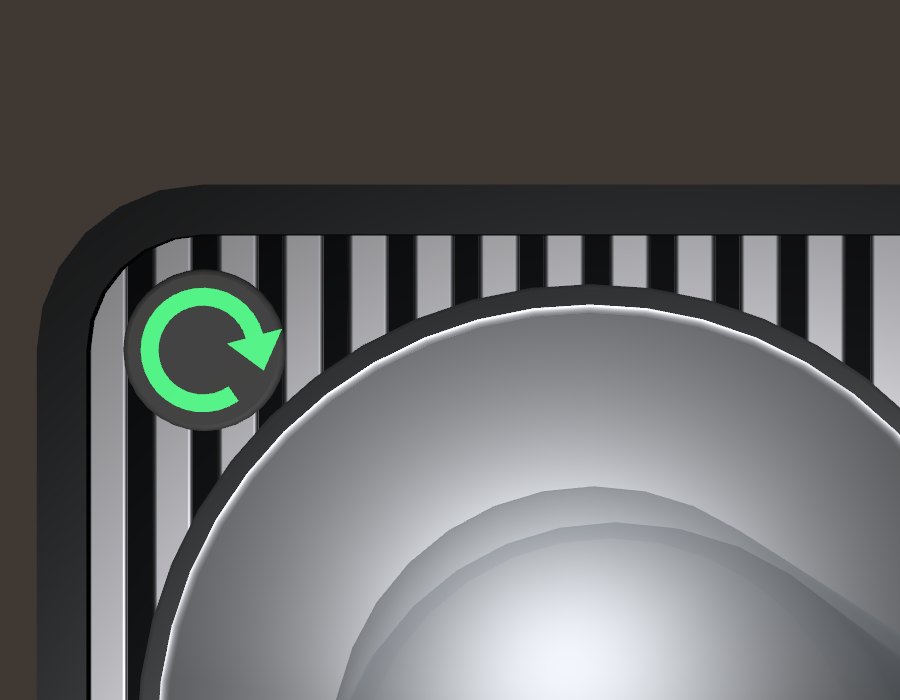
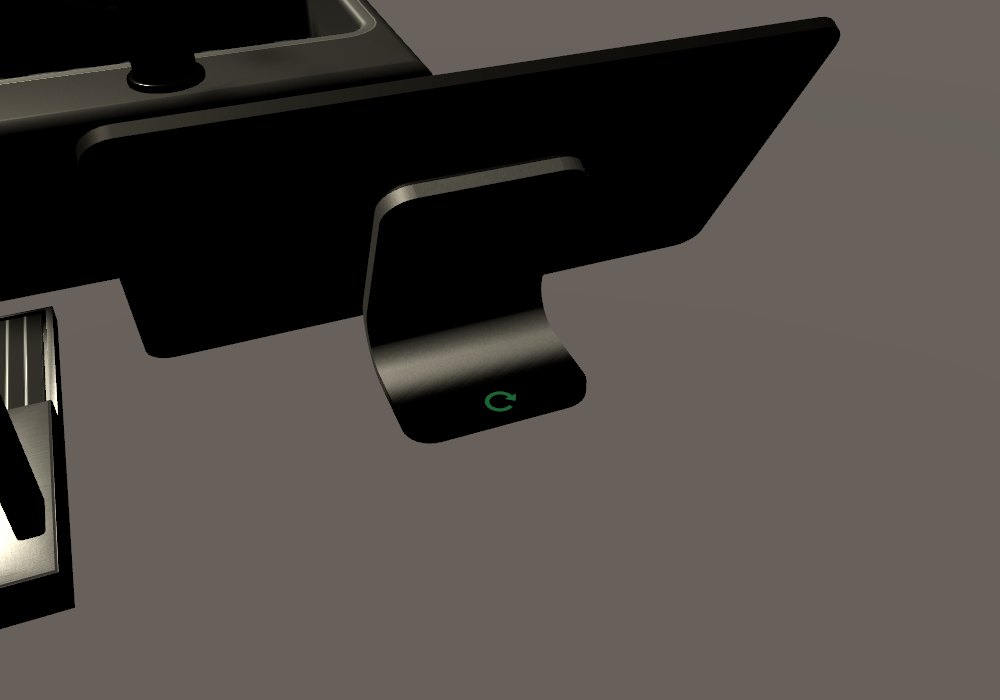
Left = coral ↻ (recall all) / Middle = green ↻ on the bar mat / Right = ↻ at the back of the tablet stand
The soda gun
When you hold the soda gun, a list of drinks appears above the gun (only the person holding it can see it).
- VR: choose with the right stick, up and down
- Desktop: choose with the mouse wheel, or with ↑↓ (PageUp / PageDown also work)
You can pour only while you hold Use (the trigger). While a recipe is being guided, when that ingredient reaches the recipe's amount, it stops by itself even if you keep holding (it is not broken). As the tablet's 「はじめての方へ」 (For first-time users) guide also says, soda water and juices come from the soda gun.
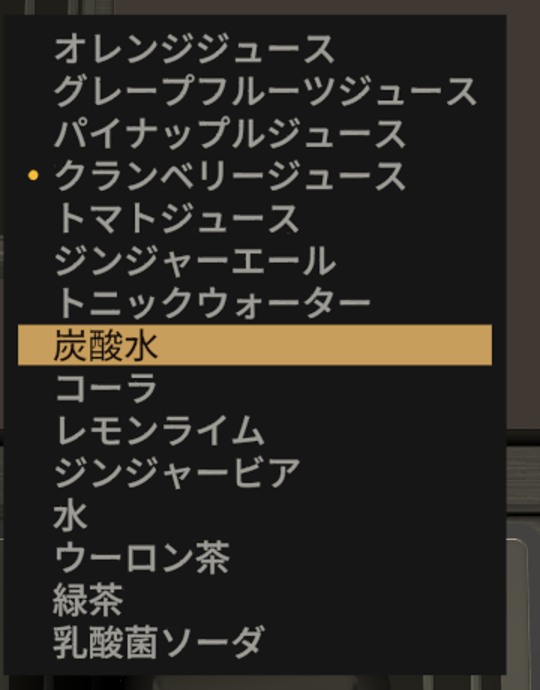
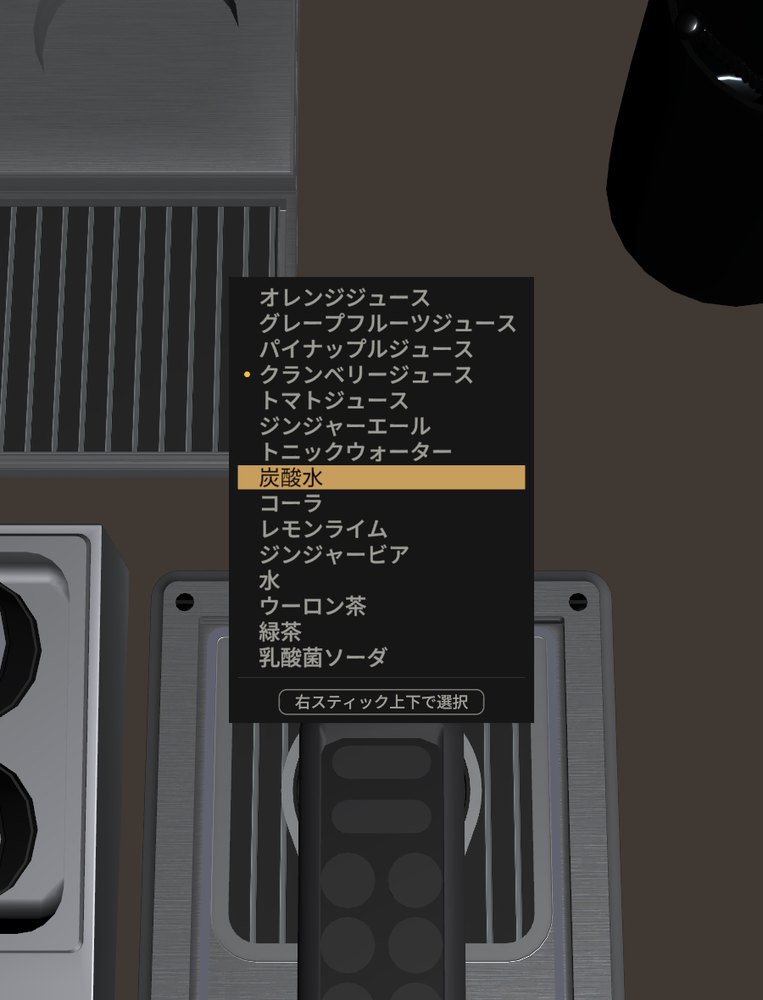
When you hold it, the list appears above the gun (only the person holding it can see it)
The guest menu
This is a tablet for guests to look at the menu. The list is the same as the bartender's (Classics, By name, By base spirit, custom tabs), but it is only for looking at the menu, and you cannot choose a drink (no steps are shown either). Each viewer can operate it separately, so any number of people can look at it. You can also pick it up, and return it with the ↻ on the stand.
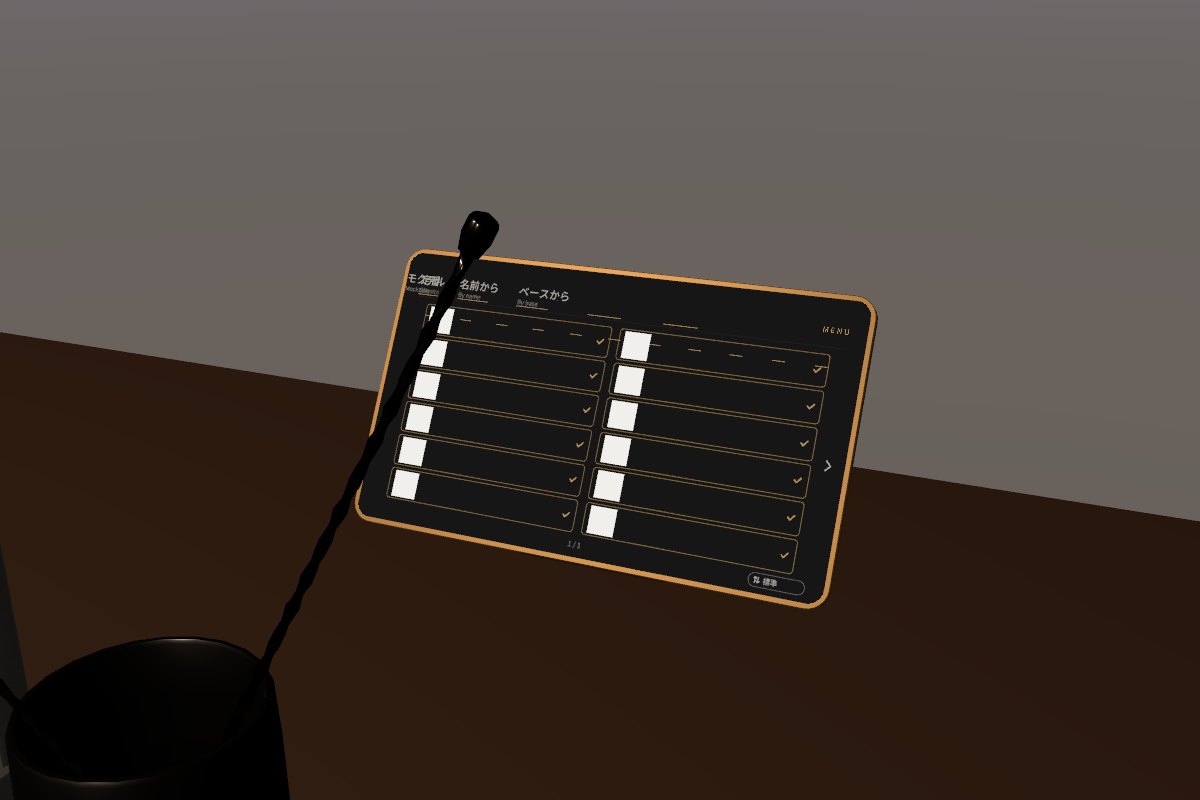
The guest menu. You can stand it on its stand
Specs and notes
This section collects specs and behaviors that are useful to know, such as how things act when several people use it and how things look, along with what to do when you have trouble.
When several people use it (network)
When two people pour into the same glass at the same time, only one person's stream and sound may appear, and the amount may not increase
What to do: Pour again.
This is because the visuals are shown first so that the pouring does not feel delayed.
Right after grabbing a glass, the lid, pouring over and the sink may not work once
If you operate a container right after grabbing one that someone else put down (or was holding), it may not respond that one time. What to do: Do it again.
If another person grabs it right after you act, your last action may be undone
If another person grabs that glass right after you pour, take a sip, and so on, your last action may be lost. What to do: Do it again. If the contents look wrong, wash it in the sink and make it again.
If you grab a glass right after entering the world, it may be overwritten with old contents
This happens when you grab it before the contents data has arrived. What to do: Wash it in the sink and make it again.
We made it work this way because making it "not accept operations until the data arrives" would cause more cases where you hold something but cannot operate it, which is worse.
If the connection drops at the moment of pouring over, that drink may disappear or be doubled
After you pour from a shaker or mixing glass into a glass, if the connection of the person who poured drops (they leave, their line is cut and so on) before the result arrives, the screens of the people who remain may show "both empty" or "both with contents." What to do: Wash the glass and the shaker in the sink and make it again.
Very rarely, only one glass may stop accepting operations
For example, when two people grab the same glass at the same moment, you may get a state where "I can pour on my screen but other people cannot see it" or "nothing goes in no matter who pours." The cause is a known VRChat-side bug, and the gimmick cannot fully prevent it.
What to do: Have another person (not one of those two) grab that glass once. If it does not recover, wash it in the sink or use a different glass.
Refilling glasses and the rise of the liquid level may be delayed
Refilling glasses is handled by the instance master's screen, and the contents of a glass that is sitting down are handled by the screen of that glass's owner (the person who grabbed it last). If that person's PC is extremely heavy or frozen, or right after the master disconnects, it may be delayed by a few seconds.
Appearance
Semi-transparent parts of an avatar seen through ice (hair and so on) may look chipped in the shape of the ice
We made it this way because fixing it would break the front-to-back ordering between the ice pieces.
Recipes
Some presets have different ingredients or ratios from the common recipe
Some drinks are simplified or arranged so that they are easy to make as a game (real cocktail recipes also differ from shop to shop and person to person). For example, for Rob Roy, there is only one kind of whiskey, so the common sweet version would have the same contents as a Manhattan; we therefore made it the dry version, 「ドライ・ロブロイ」 (Dry Rob Roy).
Some recipes go in at a reduced amount when poured from the shaker into the glass
When the amount put into the shaker or mixing glass is more than the glass can hold, it goes in reduced while keeping the ratio (example: a Manhattan, because it has extra from the bitters). It does not affect the check for a finished drink.
Some drinks cannot be made if you make them without choosing a recipe (ニューヨークサワー (New York Sour))
For a drink that has an ingredient to add to the glass after shaking, if you make it without choosing a recipe (free-style), the glass becomes full and the last ingredient does not go in. If you choose the recipe and make it, you can make it.
Credits / Licenses
This product does not require any prerequisite assets. The models, shaders, sound effects and programs were made by Serif. It includes the following third-party materials (the full text is in Assets/Serif/SerifMixology/Docs/ThirdPartyNotices.txt).
Included materials
- Noto Sans JP (Adobe / SIL Open Font License 1.1)
Used for the text on the tablet and the name tags. This is a version with fewer included characters. - Metal 009 (ambientCG / CC0 1.0)
The source material for part of the metal texture. - For the text on the bottle label images, we use fonts under the SIL Open Font License 1.1 or the Apache License 2.0 (they are drawn as images, and the font files are not included).
Terms of Use / License
This product is provided under terms of use based on the VN3 License Ver. 1.10 (license version 1.1, issued October 22, 2026). The scope of permission is summarized on page 1 of the full terms, so please check the PDF below. The Japanese version is the authoritative text, and the other languages are reference translations.
日本語 (Japanese, PDF — authoritative) / English / 한국어 (Korean) / 中文 (Chinese)
Main points
- Individuals can use it, whether for profit or not (companies, please contact us individually)
- You can upload it to Public worlds on VRChat. You can also use it in videos and streams
- You can modify it. However, you cannot distribute or sell all or part of this data (models, textures, materials, shaders, scripts, sound effects and so on). The same applies to anything you have modified, and to anything that includes only part of it inside another work (an avatar, outfit, gimmick and so on). The exceptions are as follows:
- Asking for a modification, being asked for one, or handing over a modified item is fine if both people are buyers of this product.
- The recipe and ingredient data you made in the wizard (the exported files) can be distributed if it is non-commercial.
- Putting it in a VRChat world and uploading it is fine.
- Credit is not required (but we would be happy to have it)
Special notes
- The rights to the recipe, ingredient, image and text data that the buyer made using this data's functions, or loaded into this data, belong to the buyer. The rights holder claims no rights over them. Also, the rights holder takes no responsibility for any damage caused by creating, using, distributing or sharing such data.
- If you use this data in a world made on commission from a third party (contract work), both the creator and the client must have bought this data.
- Third-party materials included with this data (fonts and so on) follow their own licenses. For details, see the included ThirdPartyNotices.txt.
Rights holder: Serif / Credit: not required (we would be happy if you add © Serif)
Last updated: October 26, 2026 / Product version v1.0.1
Next page Reference (Japanese) — Wizard, specs, FAQ →